One page as a crisp picture: choosing the DPI and the format
Render PDF pages to JPG or PNG at the resolution you choose in your browser — for slides, web or print — and when to extract the image instead.
UnboundPDF is a free suite of 54 PDF and image tools that run entirely in your browser — merge, split, compress, edit text, OCR in 126 languages, redact, sign, convert and archive to PDF/A. Your document is read and written by the page on your own device; there is no document-upload endpoint in the core tools, no account, no watermark and no daily cap. Every result can be checked — with the Network tab, or with the Document Passport the Workspace writes for a chain of steps.
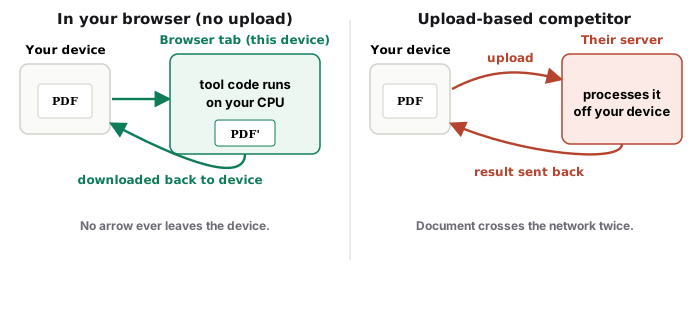
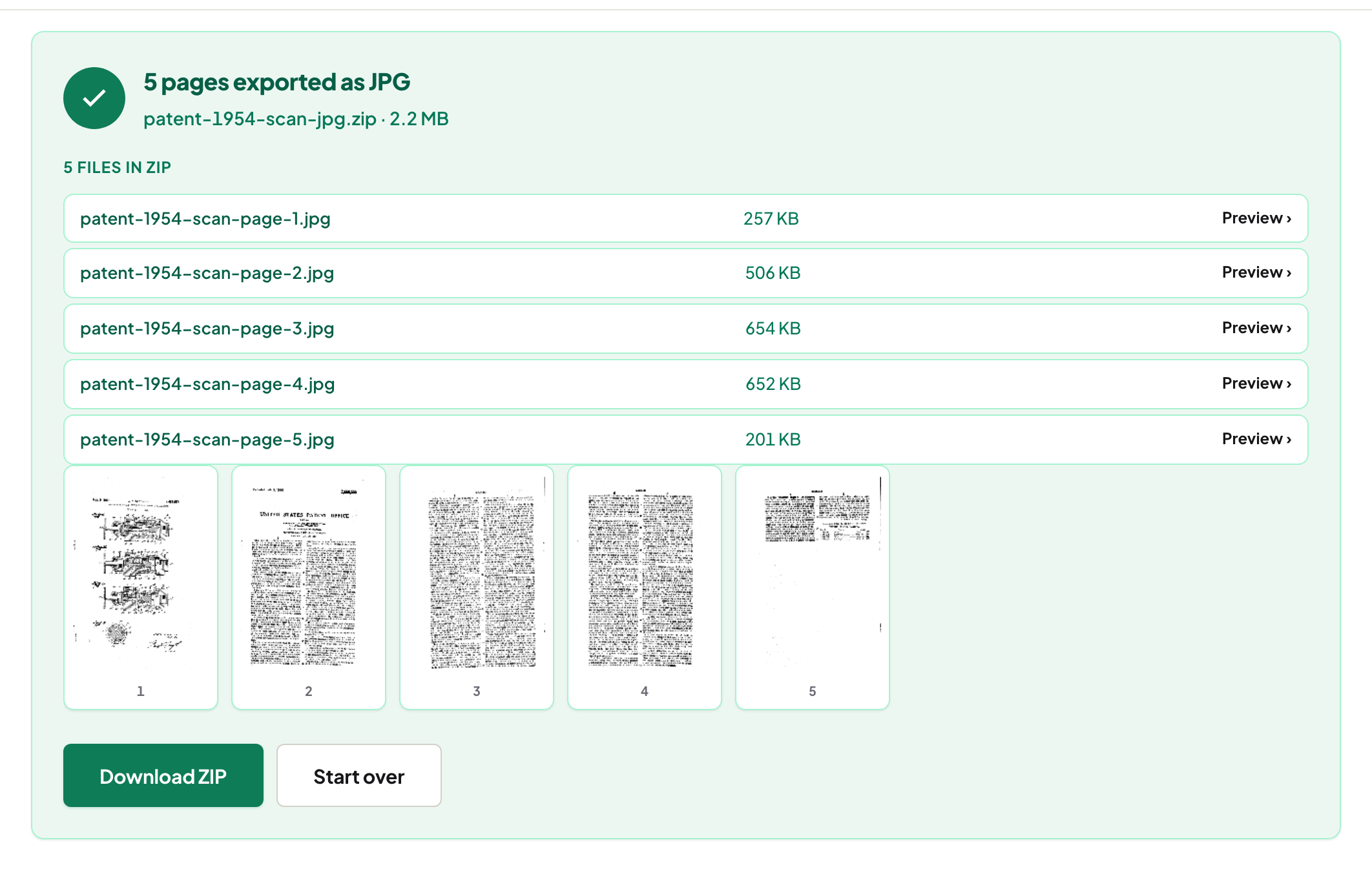
Quick start. PDF to JPG → choose the pages, the DPI and JPG or PNG → download the ZIP. For a slide, 150 DPI; for print, 300; for the web, render at 150 and resize to the pixel width you need.
DPI decides the pixels
A4 at 150 DPI is about 1240 × 1754 pixels; at 300 DPI about 2480 × 3508. Slides and screens rarely need more than 150; print wants 300. Higher DPI means larger files and no extra detail beyond what the page contains.
JPG or PNG
PNG for pages with text and line art (sharp edges, no compression artefacts); JPG for photographic pages where size matters.
The photo inside, not the page
If what you want is the photograph on the page at full quality, Extract Images returns the stored pixels — see the comparison.
Mac, Windows, iPhone, Android
Same page; the ZIP lands in downloads, and on a phone the images can be saved to Photos from it.
Frequently asked questions
Which DPI for a PowerPoint slide?
150 is sharp on any screen; 300 only if the slide will be printed.
Can I render just one page?
Yes — choose the page numbers.
Is the PDF uploaded?
No. Rendering happens in your browser with pdf.js.
Try it yourself
Free, private, no account. Runs entirely in your browser.