How PDF editors keep the same font — or quietly fake it
Updated 20 August 2026
A PDF editor can only truly keep the same font by reusing the font embedded inside the document itself. Most online editors instead “detect and match” a lookalike system font, or silently fall back to Helvetica or Arial. UnboundPDF reuses the embedded font first, and refuses out loud when it can’t — it never substitutes silently.
Same font after editing a PDF: what’s technically real, what’s a lookalike, and how to test any editor’s claim in two minutes.
UnboundPDF is a free suite of 54 PDF and image tools that run entirely in your browser — merge, split, compress, edit text, OCR in 126 languages, redact, sign, convert and archive to PDF/A. Your document is read and written by the page on your own device; there is no document-upload endpoint in the core tools, no account, no watermark and no daily cap. Every result can be checked — with the Network tab, or with the Document Passport the Workspace writes for a chain of steps.
- Open your PDF in the editor and click a line of text.
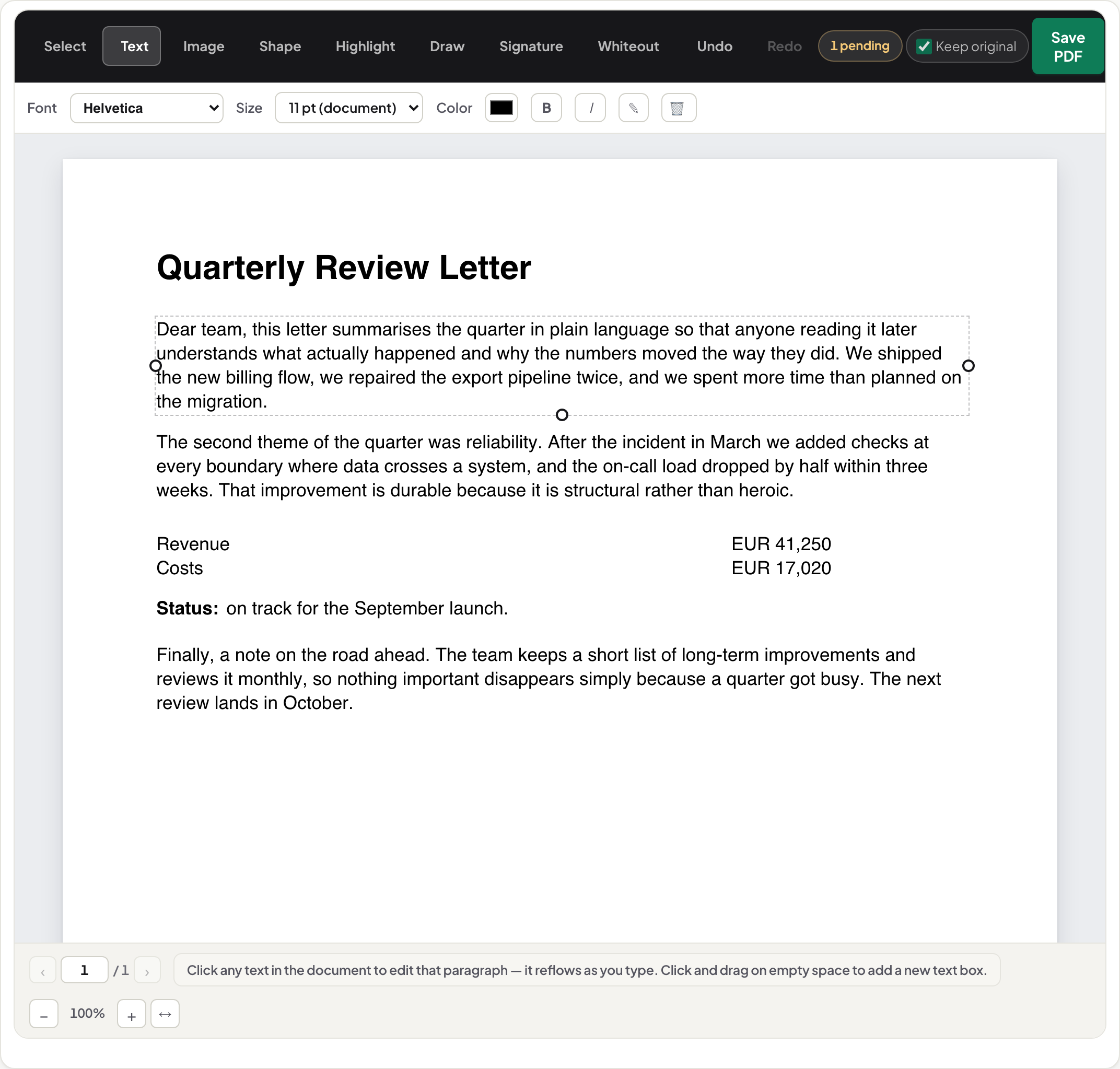
- Read the font and size controls — they should name the document’s own font and exact size, not a rounded default.
- Retype a word, save, and reopen the file.
- Zoom to 400% and compare the edited word with its neighbours — letterforms, weight and spacing should be indistinguishable.
The three ways editors handle your font
| Approach | What actually happens | What you see |
|---|---|---|
| Reuse the embedded font | New text is written with the font program already stored inside the PDF | Edits are pixel-true to their neighbours |
| “Detect and match” | The editor guesses a similar font installed on its system | Close at 100% zoom; stems, spacing and figures drift on close inspection or print |
| Silent fallback | New text is set in Helvetica/Arial regardless of the document | The edit is visible at a glance |
Only the first approach can be called “keeping the same font”, and it is only possible when the editor works inside the PDF’s own structure. UnboundPDF’s editor writes replacement text against the document’s own font resources — the same bytes that draw every other line on the page.
Why “same font” is genuinely hard: subsets
Most PDFs don’t embed whole fonts — they embed subsets containing only the letters the document actually uses (you can spot them by the six-letter prefix in the font name, like BAAAAA+SFNS-Regular). Two consequences: an editor that reuses the embedded font may find a character you typed simply isn’t in the file; and some producers split one typeface across dozens of subset objects — Chrome’s print-to-PDF can emit thirty-plus font objects for three real typefaces, which is why some documents fragment in lesser editors. The same missing-glyph problem shows up when converting a document to PDF in the first place — see converting Cyrillic or Greek text to PDF for what gets embedded automatically and what still does not.
What UnboundPDF does, in order
1) Reuse the document’s own embedded font — pixel-true. 2) If that’s unsafe, use the same standard font family where the text allows it. 3) Otherwise embed a real replacement font subset with full character support. 4) If the characters you typed exist in none of these, it refuses the edit and names the missing characters — the actual message reads “these characters have no glyph in the replacement font — edit refused rather than printing empty boxes.” A refusal you can read beats a page quietly set in the wrong face.
Test any editor’s claim in two minutes
Use the steps above on a throwaway copy. Two extra checks: select the edited area — cover-up editors reveal a white patch behind the text; and print or export at high zoom — “matched” fonts drift exactly there. The Privacy Lab covers the separate question of whether your file was uploaded while you edited it.
Scope
When an embedded subset lacks a glyph you typed, the editor embeds a replacement font and tells you so, so you can judge the result at zoom. Bold words inside an edited paragraph currently take the paragraph's dominant weight. Both behaviours are stated on screen at the moment they apply.
What you can change beyond the words
The editor's toolbar is not only the Text tool. You can place an image (a logo, a scanned stamp), draw a shape, highlight a passage, draw freehand, add a signature, or white out an area — each is placed on the page as its own object, and each is a different action from retyping a sentence. The distinction matters for fonts: retyped text is set in the document's own embedded font, as this guide explains; a highlight or a shape has no font at all, so nothing can drift.
Why we don't offer a font menu for existing text
Editors that let you switch a paragraph to any font from a menu are making a trade you should know about: the moment the text leaves the document's embedded font, it stops matching its neighbours — spacing, weight and letterforms all shift, and the edit becomes visible. Matching the original is the harder and more useful default, which is why the control names the document's font instead of offering a list. When you genuinely want different-looking text — a note, a caption — add it as new text rather than converting a paragraph.
The size control tells the truth
The size shown is read from the document — “11 pt (document)” means the file says 11 pt, not that we rounded a measurement. Keeping the size exact is half of why edited lines sit flush with their neighbours; the other half is the font itself.
Frequently asked questions
What happens if the replacement font is missing a character I typed?
If the characters you typed exist in none of the fonts available to it, UnboundPDF refuses the edit and names the missing characters, rather than printing empty boxes or substituting silently.