Two ways to finalise a marked-up PDF, and which one your recipient wants
Flatten bakes comments, stamps and fields into the page; Remove Annotations deletes them. How to choose, and what each does to forms and signatures.
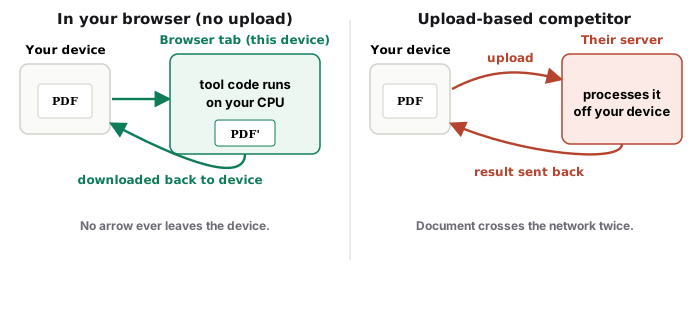
UnboundPDF is a free suite of 54 PDF and image tools that run entirely in your browser — merge, split, compress, edit text, OCR in 126 languages, redact, sign, convert and archive to PDF/A. Your document is read and written by the page on your own device; there is no document-upload endpoint in the core tools, no account, no watermark and no daily cap. Every result can be checked — with the Network tab, or with the Document Passport the Workspace writes for a chain of steps.
The rule. Want the markup to stay visible but frozen — Flatten. Want the page clean, as authored — Remove Annotations.
| Flatten | Remove Annotations | |
|---|---|---|
| Comments, highlights, stamps | Baked into the page, visible, static | Deleted |
| Form fields | Values baked in; fields gone | Fields stay editable |
| A placed signature | Becomes part of the page | Removed if it is an annotation |
| Right for | Final documents, signed forms | A clean copy for a new round of review |
Forms and signatures
Flatten after filling and signing and the form is a record — values visible, nothing editable. Remove Annotations on a signed form would remove a signature placed as an annotation; that is rarely what you want after signing, and exactly what you want before a fresh round.
Printing and other readers
Some readers hide or mis-render annotations; flattened pages print the same everywhere. If a reviewer says "I cannot see your comments", flatten a copy for them.
Neither is redaction
Flattening a black box over text leaves the text underneath; removing the box reveals it. For content that must be gone, redact.
Frequently asked questions
Does flattening reduce quality?
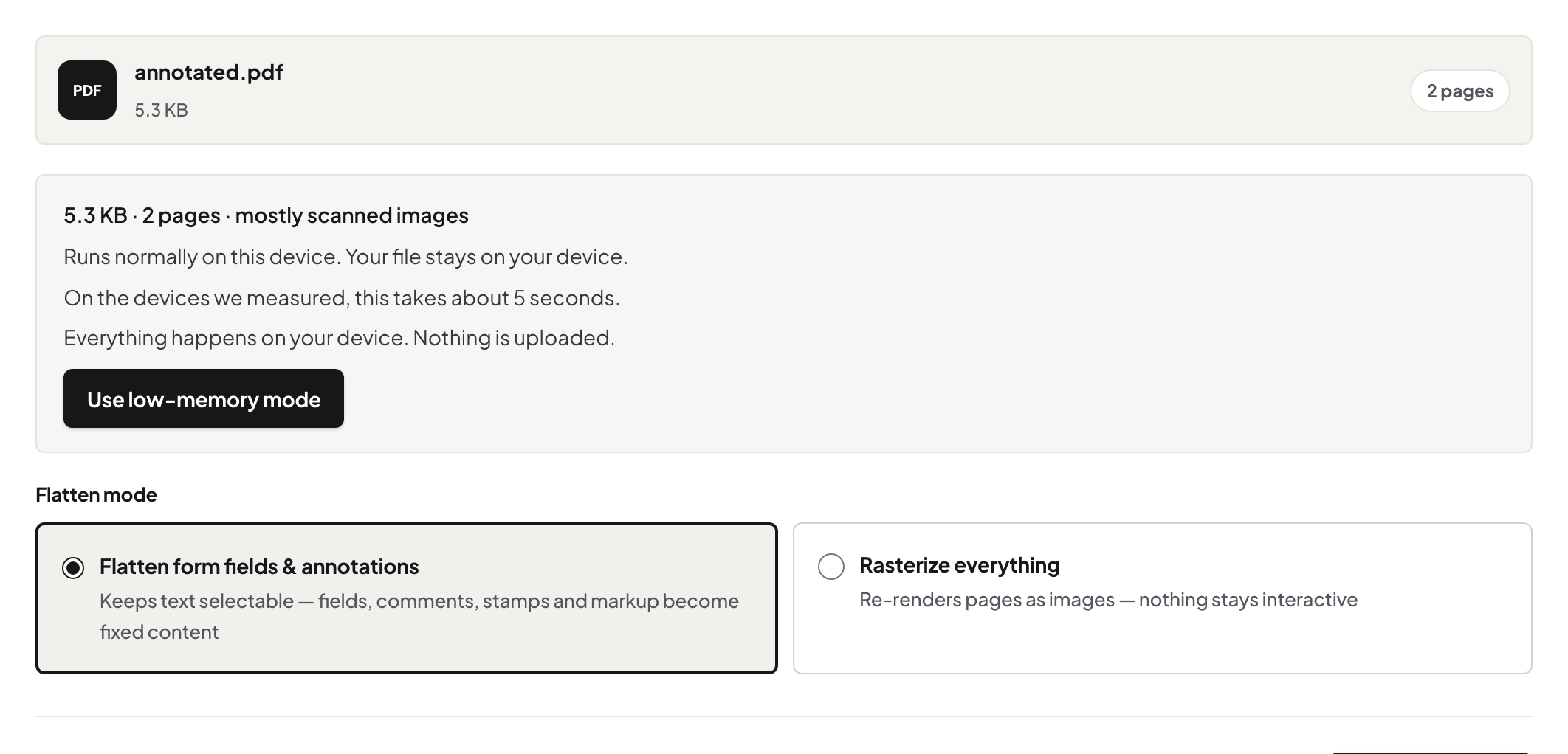
Text stays text; annotations become page content. Nothing is rasterised.
Can I unflatten?
No — keep the unflattened copy if you may need to edit again.
Will Remove Annotations delete links?
Link annotations are annotations; check the result if the document relies on clickable links.
Try it yourself
Free, private, no account. Runs entirely in your browser.