Signing a PDF in your browser: the three signature methods and what each one is
Sign a PDF without uploading it — draw, type or upload a signature, place it, flatten. What a visible signature is and when a certificate is required.
UnboundPDF is a free suite of 54 PDF and image tools that run entirely in your browser — merge, split, compress, edit text, OCR in 126 languages, redact, sign, convert and archive to PDF/A. Your document is read and written by the page on your own device; there is no document-upload endpoint in the core tools, no account, no watermark and no daily cap. Every result can be checked — with the Network tab, or with the Document Passport the Workspace writes for a chain of steps.
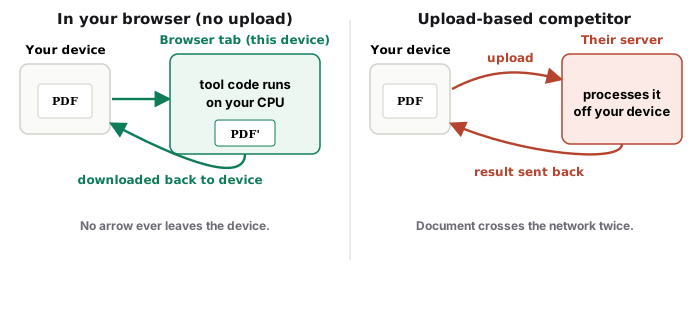
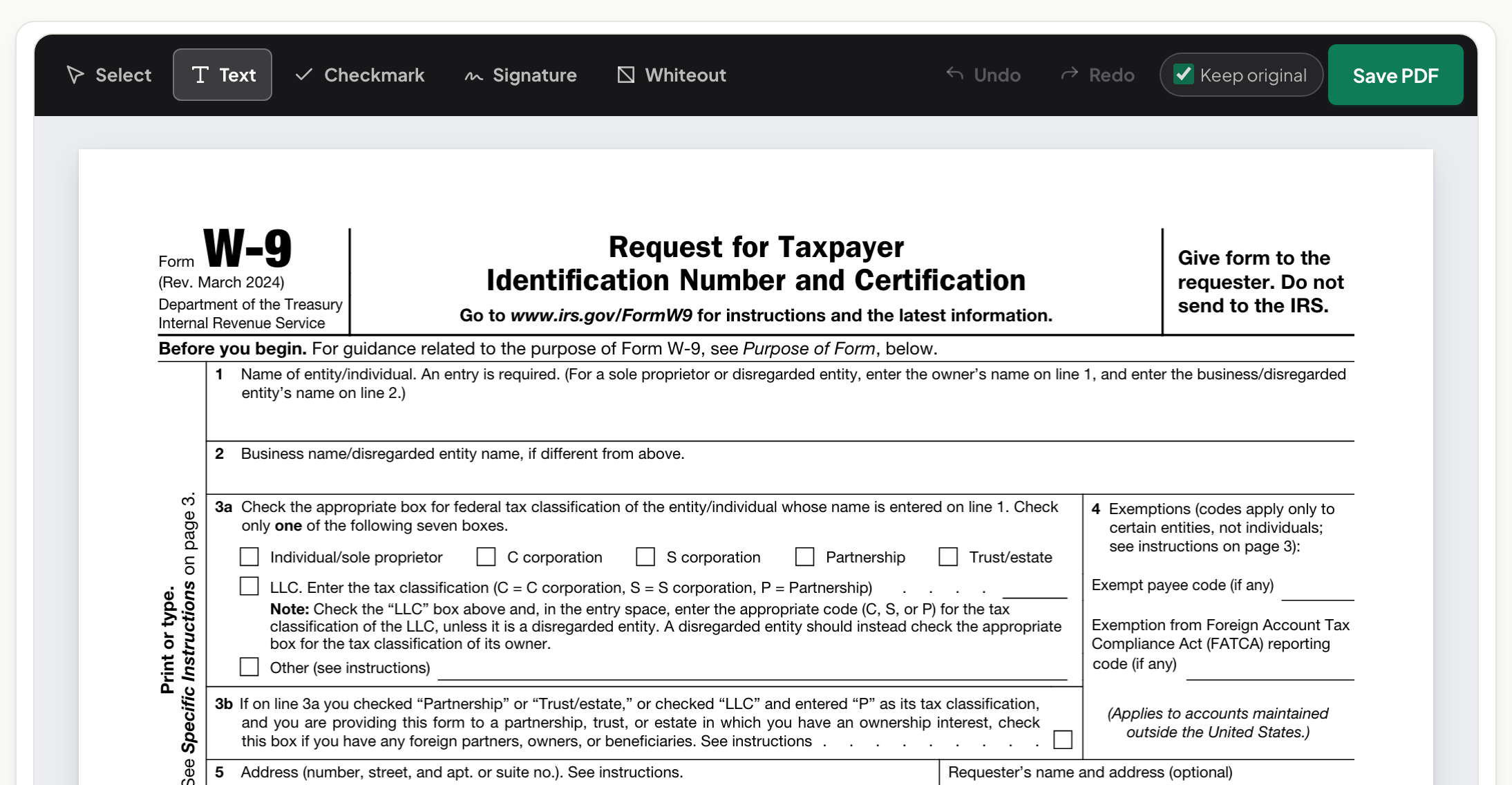
Quick start. Open Fill & Sign, add the PDF, fill any fields, create a signature (draw, type, or upload an image), place it, save. The signature is a visible image on the page; the file never leaves your device.
The three ways to make a signature
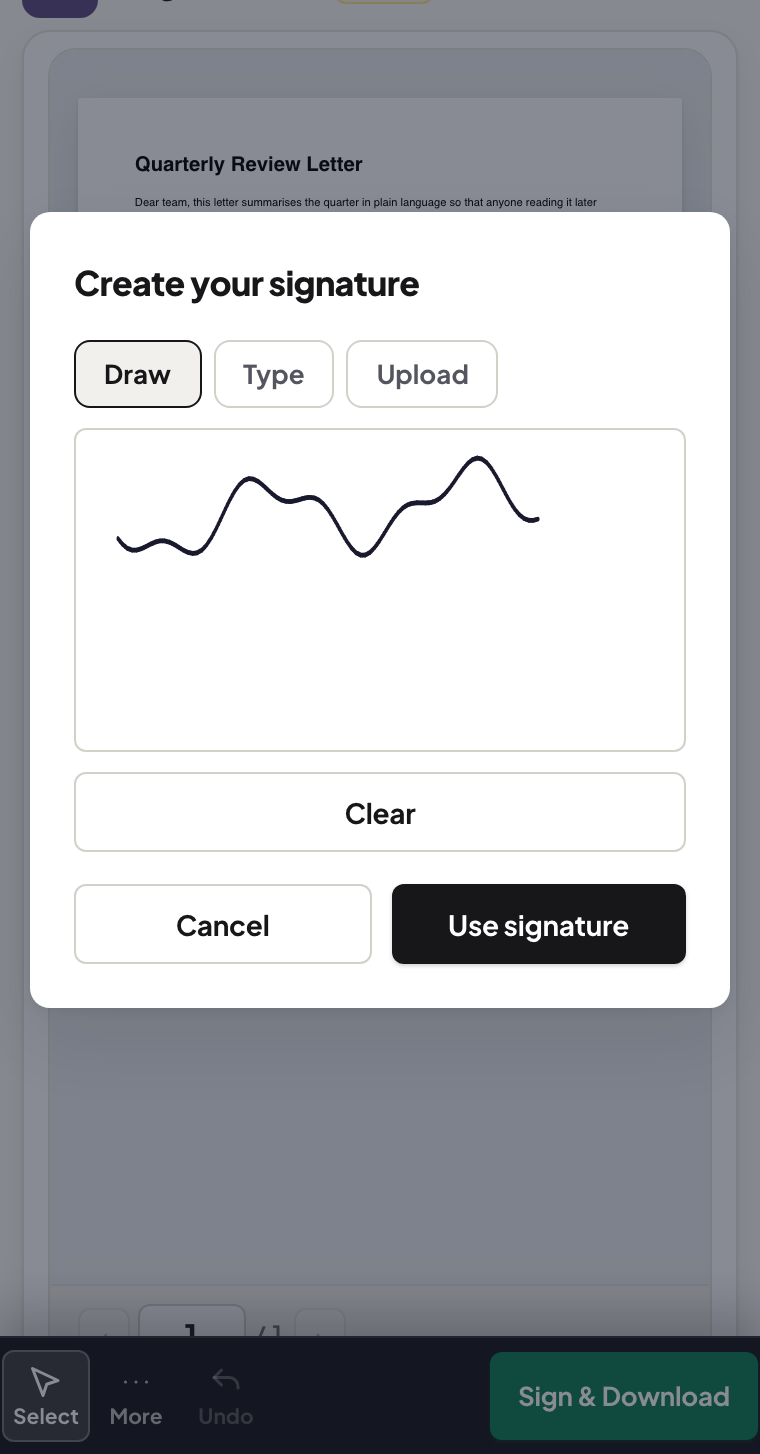
Draw with a mouse, trackpad, finger or stylus — the natural choice on a phone or tablet. Type your name and the tool renders it in a signature-style face — quick, legible, and obviously typed. Upload a photo of your real signature on white paper — the tool uses it as an image; crop tightly and photograph in good light so the background is clean. All three produce the same kind of result: a picture of a signature placed on the page.
What a visible signature is — and is not
A placed signature image is what most everyday forms ask for: a lease, a permission slip, a delivery note, a job offer. It shows that you signed. It is not a certificate-based digital signature (PKCS #7 / PAdES), which ties the signature to a cryptographic identity and makes later changes detectable. If a counterparty, a court or a registry asks for a "digital signature" or "qualified electronic signature", they mean the certificate kind — use a signing service that issues one. We say this plainly because competitors often do not.
Filling the fields first
Fill & Sign fills form fields — text, checkboxes, dates — before you place the signature. If the PDF has no fields (a scanned form), type directly onto the page with the text tool; the result is the same on paper.
Flatten, or not
After signing, Flatten PDF bakes fields and the signature into the page so the recipient cannot edit them. Flatten when the document is final; leave it unflattened when the other party still has to fill their part.
Proof that this file is the one you signed
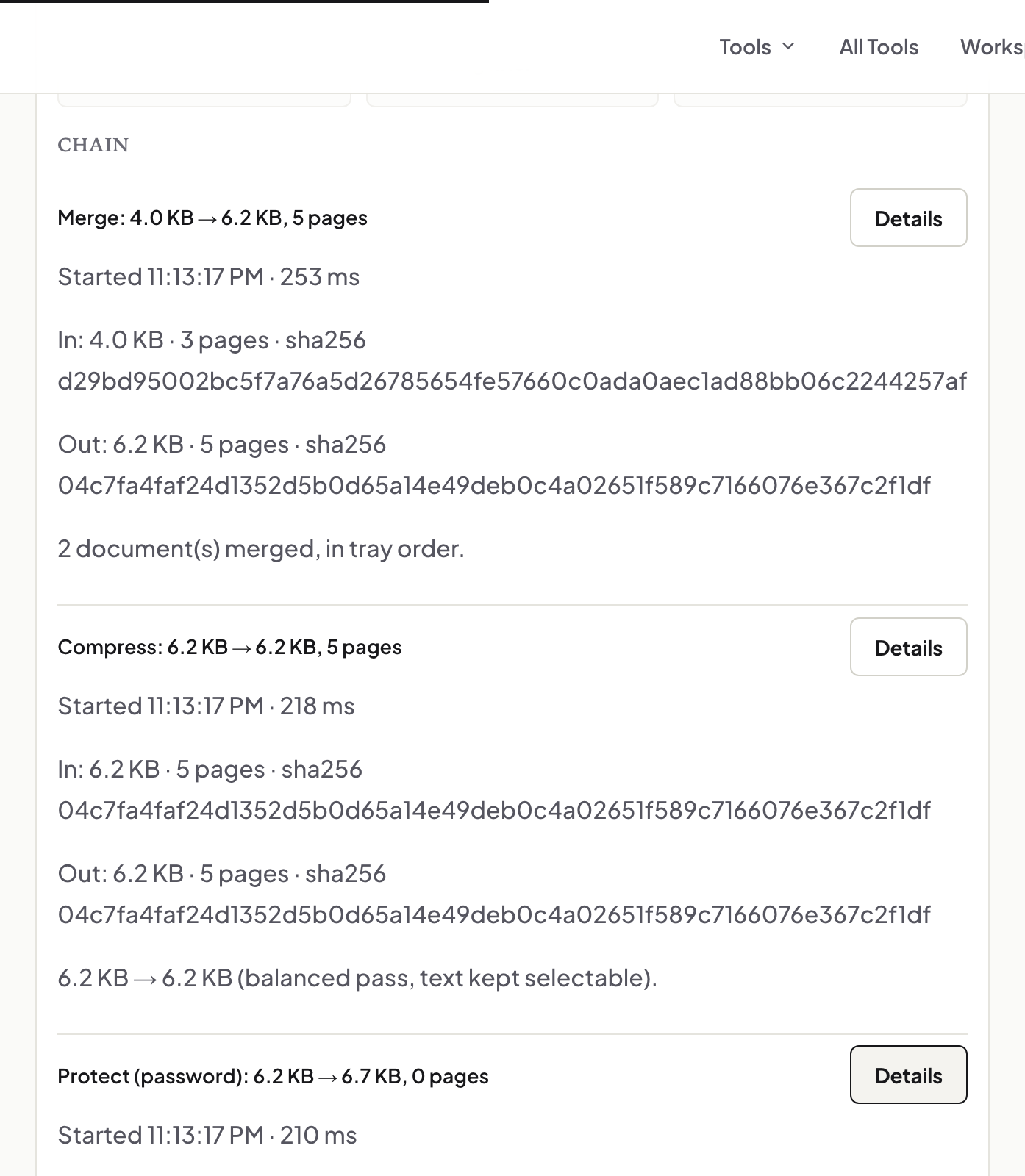
Sign inside the Workspace and every step — fill, sign, flatten — is recorded in a Document Passport with the SHA-256 of its output. Send the hash by another route and the recipient can confirm the file they hold is the one you made. It is not a certificate; it is a checkable record.
Mac, Windows, iPhone, Android
Same page. On iPhone and Android, draw with a finger — the pad is full width; on a Mac with a trackpad, typing is often neater than drawing; on Windows with a touchscreen, draw. Everywhere, the signed file downloads from the tab.
Troubleshooting
The signature looks pixelated. Upload a larger, well-lit photo, or draw at a bigger size and shrink it on the page. The recipient could move my signature. Flatten before sending. The form will not accept typing. It has no fields — use the text tool on the page. A portal rejects the file. It may require a certificate-based signature; this tool does not produce one.
Frequently asked questions
Is a drawn signature legally binding?
In many jurisdictions a visible signature on a document can be binding for everyday agreements, and a certificate-based signature is required for specific cases. Which applies is set by the law where you are and by the counterparty — this page describes the tool, not the law.
Can I save my signature for next time?
Create it each time, or keep a clean photo of it to upload. The tool does not store your signature anywhere.
Does signing upload my document?
No. The document is read and written in your browser tab; check it with the Network panel if you like.
Try it yourself
Free, private, no account. Runs entirely in your browser.
Related articles
Signing a PDF on your phone — no app, no upload, no printer
One document, several tools, and a receipt for the whole chain
An onboarding pack that is signed, final, and private
A teacher's week in PDFs: worksheets, slips, scanned homework
Two ways to finalise a marked-up PDF, and which one your recipient wants