The assistant summarised three pages of nothing: your PDF was pictures, not text
AI assistants read a PDF's text layer. Scans have none — OCR on your device first, then extract or paste, and summaries stop being confident fiction.
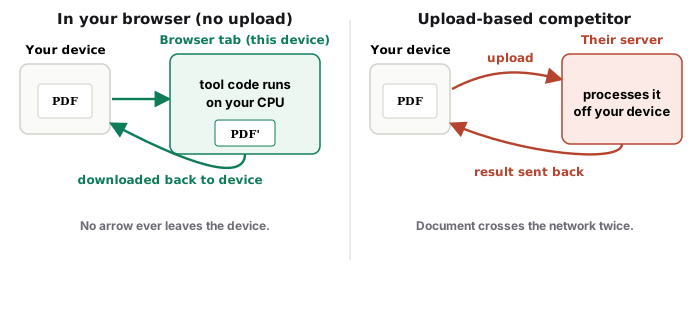
UnboundPDF is a free suite of 54 PDF and image tools that run entirely in your browser — merge, split, compress, edit text, OCR in 126 languages, redact, sign, convert and archive to PDF/A. Your document is read and written by the page on your own device; there is no document-upload endpoint in the core tools, no account, no watermark and no daily cap. Every result can be checked — with the Network tab, or with the Document Passport the Workspace writes for a chain of steps.
The check and the fix. Select a word in the PDF. Nothing selects → the file is pictures of words: run OCR PDF (126 languages, on your device), then share or extract. Text selects → skip straight to extraction.
The failure mode: confident summaries of nothing
Hand an assistant a scanned PDF and, depending on the service, it may read only the (empty) text layer — then improvise from the filename and whatever fragments exist. The output looks like a summary; it is a guess wearing one. The document was never readable: a scan is photographs of paper, and photographs contain no text until recognition writes some.
Why the text layer beats vision-on-images here
Some assistants can look at page images directly, and for a quick question that can work. The text layer is still the sturdier road: it travels with the file into every service, it survives extraction into clean Markdown, and — unlike a vision pass you cannot inspect — OCR here reports per-page confidence, so you know which pages the text is solid on before an AI builds conclusions on them.
The full preparation chain
Crooked scan → deskew → OCR (set the language for short or mixed documents; the scan-quality habits raise every score) → extract to Markdown → redact what the task doesn't need → paste. Every step before the paste runs on your device; the assistant receives exactly what you chose to give it, in a form it can genuinely read.
Troubleshooting
The AI still misquotes numbers from my scan. Check those pages' OCR confidence — low scores mean read-from-the-image, for models and humans alike. Mixed typed-and-scanned file. OCR the whole file; it adds text only where pages lack it. Handwritten notes. Honest limit: print recognises well, handwriting does not — type the crucial lines yourself.
Frequently asked questions
How do I know if my PDF is AI-readable?
Select a word in any reader. Selects: there is text, assistants can work with it. Doesn't: it's pictures — OCR first.
Can't modern AIs read images of documents?
Some accept images and read them with their own vision — capabilities and accuracy vary by service and document. A proper text layer works everywhere, and you can check its per-page confidence before trusting it.
Does OCR here upload the scan?
No — recognition runs in your browser. The scan reaches an AI only if you later choose to share the result.
Try it yourself
Free, private, no account. Runs entirely in your browser.