Payroll, offers, client data: put a password on the PDF, send the password separately
Password-protect a PDF in the browser before emailing it: when protection is the right tool, how to share the password, and what it does not defend from.
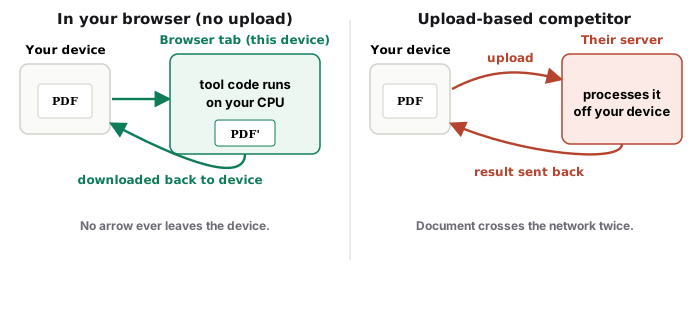
UnboundPDF is a free suite of 54 PDF and image tools that run entirely in your browser — merge, split, compress, edit text, OCR in 126 languages, redact, sign, convert and archive to PDF/A. Your document is read and written by the page on your own device; there is no document-upload endpoint in the core tools, no account, no watermark and no daily cap. Every result can be checked — with the Network tab, or with the Document Passport the Workspace writes for a chain of steps.
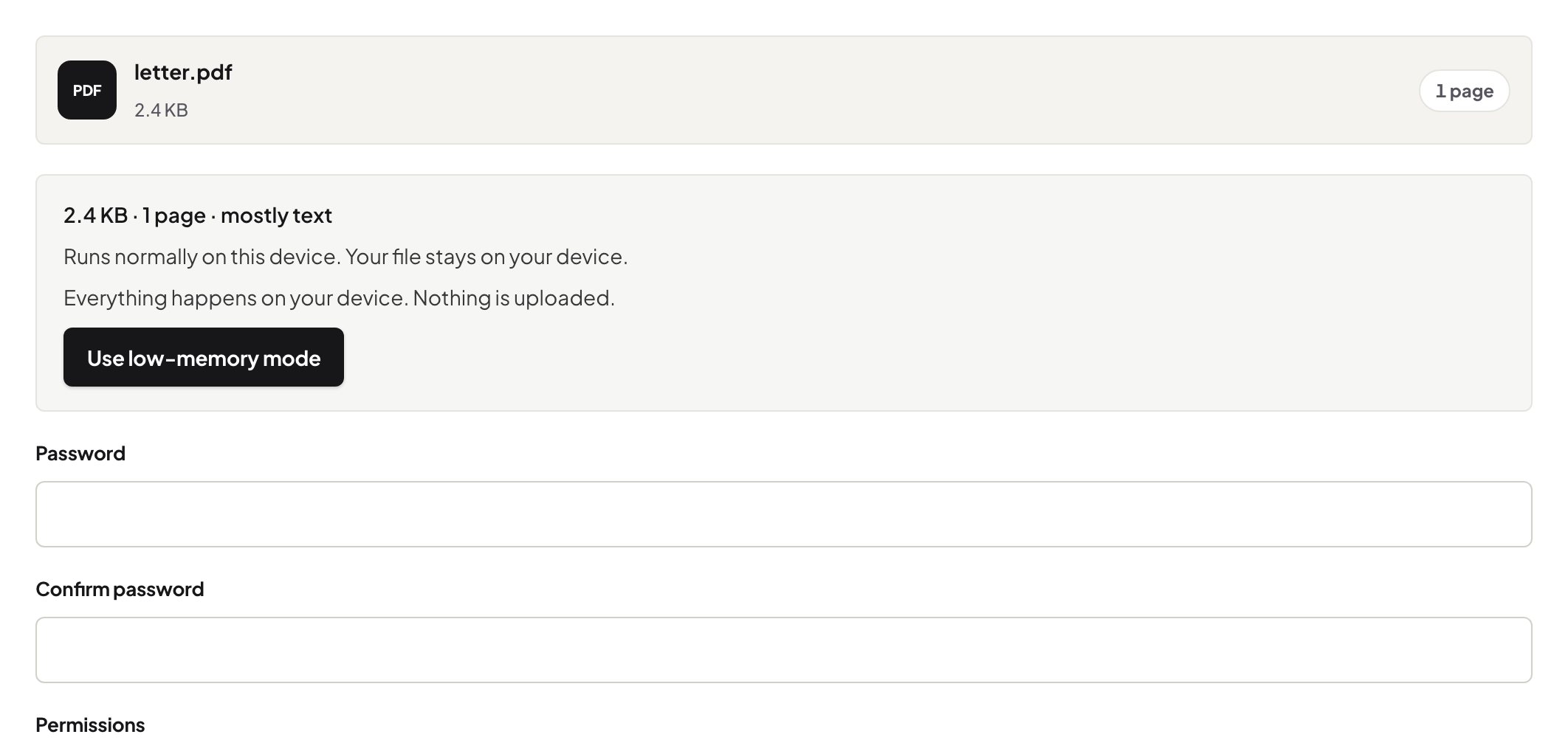
Quick start. Open Protect PDF, add the file, set a strong password, download the protected copy, send it — and send the password by a different channel. Keep the unprotected original filed on your side.
What a password is for
It answers one specific risk: the file ending up in front of the wrong reader — the mistyped address, the forwarded thread, the shared laptop. Payroll runs, offer letters, medical letters and client exports are the everyday cases. The recipient opens it with the password; everyone else holds a locked box.
The password itself, and its journey
Generate one for the purpose; never reuse a password you care about, because sharing it is the whole point. Then split the channels — file by email, password by text message or spoken on a call. And agree what the recipient does after opening: for their own records, saving an unlocked copy into their secure filing is usually more sensible than a password nobody remembers in March.
What it does not do
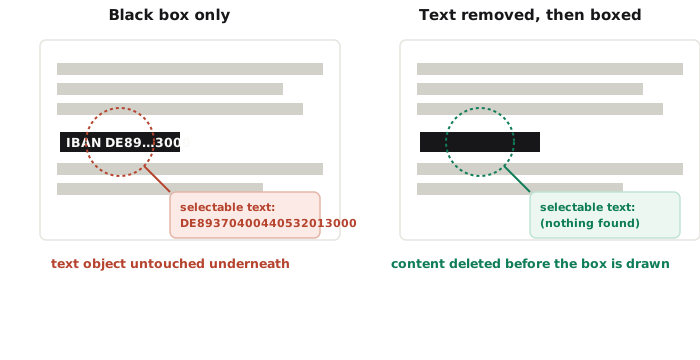
A password does not control what the rightful recipient does next — print, forward the opened content, screenshot it. It is a lock on the file, not on the person. If specific content must not reach the recipient at all, that is redaction before protecting — the statement walkthrough shows that order — and if you have received a protected file yourself, here is what you can and cannot do with it.
Troubleshooting
The recipient says the password fails. Spell it on a call — transcription across channels is the usual culprit; generated passwords avoid ambiguous characters poorly, so read carefully. I lost my own password. Use your unprotected original — that is why it stays filed. The portal I am uploading to rejects protected PDFs. Portals often must read the file; send the unprotected version through the portal's own secured channel instead.
Frequently asked questions
How should I share the password?
On a different channel than the file: the file by email, the password by message or phone. The two travelling together protects nothing.
What password should I use?
A generated one, unique to this document or recipient — not your own reused password, because you are handing this one to someone else.
Is the PDF uploaded to be encrypted?
No — protection is applied in your browser; the document and the password stay on your machine until you choose to send them.
Try it yourself
Free, private, no account. Runs entirely in your browser.