One book in, one file per chapter out — using the outline the author already made
Split a book PDF into chapter files in your browser, from its own bookmarks: pick the level and get files named after the chapters.
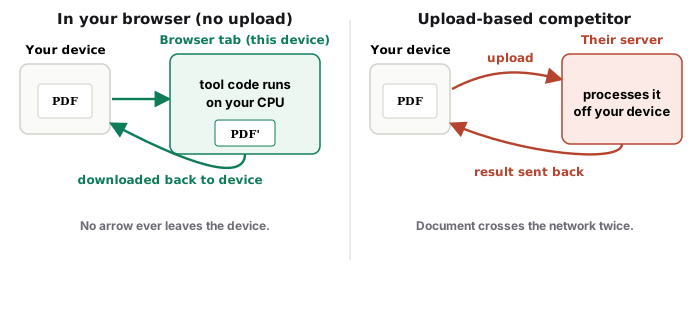
UnboundPDF is a free suite of 54 PDF and image tools that run entirely in your browser — merge, split, compress, edit text, OCR in 126 languages, redact, sign, convert and archive to PDF/A. Your document is read and written by the page on your own device; there is no document-upload endpoint in the core tools, no account, no watermark and no daily cap. Every result can be checked — with the Network tab, or with the Document Passport the Workspace writes for a chain of steps.
Quick start. Open Split by Bookmarks, add the book, wait for the outline to load, pick the level — parts, chapters or sections — and Split. Each file is named after its bookmark and starts exactly where the author began the chapter.
The outline is the author's own table of contents
Most published PDFs carry an outline — the bookmarks panel in your reader. It encodes where every part, chapter and section begins, at nested levels. Splitting by that outline beats counting pages every time: no off-by-one at chapter boundaries, no renaming twenty files by hand, and front matter before the first bookmark stays together as its own file.
Choosing the level
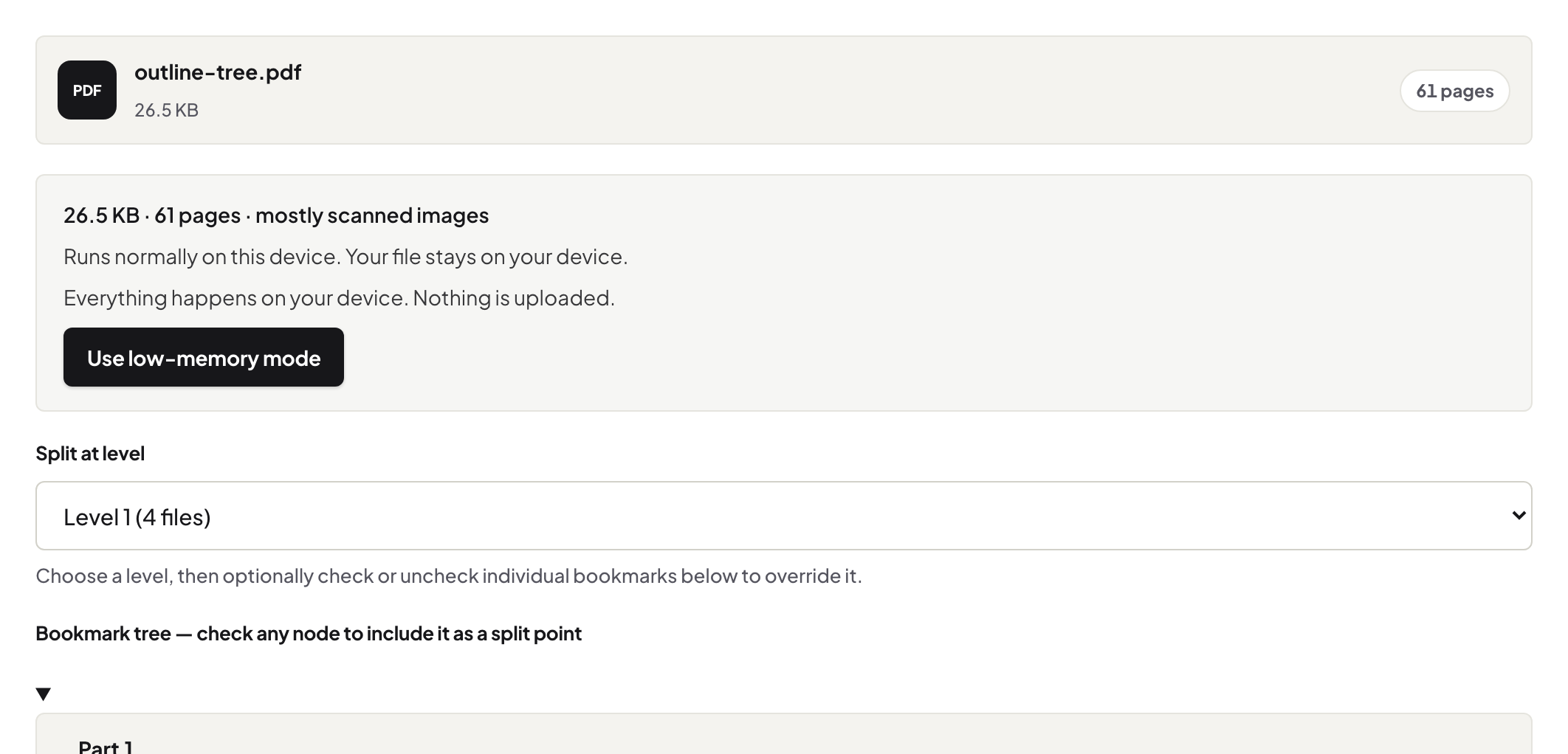
Level 1 in a typical book is parts; level 2 is chapters; level 3 is sections. The tool shows the tree so you can see what each level would produce before splitting. A textbook with "Part I / Chapter 1 / 1.1" splits into a handful of files at level 1, a few dozen at level 2, and many small ones at level 3 — pick the granularity you will actually read.
Names that mean something
Each output file is named after its bookmark — "03 The Long Winter.pdf", not "pages-88-134.pdf". That is the difference between a folder you can navigate and one you have to open file by file.
When there is no outline
Scans and some exports have no bookmarks; the Split button stays off until an outline loads, and tells you why. Fall back to Split PDF with page ranges from the printed table of contents — or, for a scan, OCR it first and consider whether you need chapters at all or just search (the scanned-book walkthrough covers that path).
After the split
Chapter files keep their pages byte-for-byte; text stays selectable; each file compresses or converts like any PDF. For phone reading, crop the margins and compress each chapter with Balanced.
Troubleshooting
Split is disabled. No outline — wait for it to finish loading, or use ranges. Chapters split mid-page. They cannot: splits happen at page boundaries; a chapter that starts mid-page shares that page with the previous file, which the tool tells you. The book is locked. Unlock PDF with the password first.
Frequently asked questions
Does the split keep quality?
Yes — pages are copied out unchanged; nothing is re-encoded.
Can I split only one chapter out?
Yes — pick it in the tree, or use Split PDF with that chapter's page range.
What happens to the front matter?
Everything before the first bookmark at your chosen level becomes its own leading file.
Try it yourself
Free, private, no account. Runs entirely in your browser.