From a 400-page scan to searchable chapters, on your own computer
OCR a scanned book in your browser (126 languages), deskew first, then split it into chapters and compress for a phone — every step recorded.
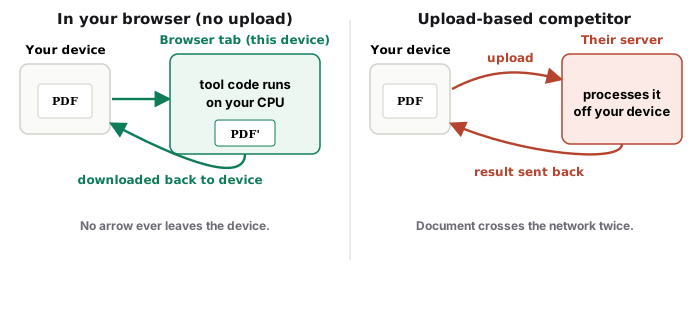
UnboundPDF is a free suite of 54 PDF and image tools that run entirely in your browser — merge, split, compress, edit text, OCR in 126 languages, redact, sign, convert and archive to PDF/A. Your document is read and written by the page on your own device; there is no document-upload endpoint in the core tools, no account, no watermark and no daily cap. Every result can be checked — with the Network tab, or with the Document Passport the Workspace writes for a chain of steps.
Quick start. Deskew → OCR PDF → Split by Bookmarks (or by range) → Compress for a phone. In the Workspace, one chain with a passport.
Straighten first
Book scans lean; OCR confidence rises when the lines are level. Deskew measures each page's angle and rotates it back — a pass that costs a minute and pays on every page after.
Recognise
Pick the language or let detection choose; a long book takes as long as your machine needs — a laptop overnight is fine, and nothing is uploaded. Read the per-page confidence: a run of low pages usually means a different language or a damaged scan section.
Split
If the scan carries an outline, Split by Bookmarks names each chapter file after its bookmark. If not, split by page ranges from the table of contents — the worked example shows both.
Read it on a phone
Crop the margins with Crop PDF and compress each chapter with Balanced — the OCR text layer survives compression, so search still works.
Troubleshooting
OCR reads the wrong language. Set it explicitly. Chapter files are huge. Compress after splitting. The outline is missing. Split by range from the contents page.
Frequently asked questions
How long does a 400-page book take?
As long as your device needs — the work runs locally. Start it and let it run; nothing is sent anywhere.
Does compression remove the OCR text?
Balanced keeps the text layer; Maximum renders pages to images and would — use Balanced.
Can I do this on a phone?
The pages work on phones, but a long book is faster on a laptop.
Try it yourself
Free, private, no account. Runs entirely in your browser.
Related articles
Making a scan searchable in any of 126 languages, without uploading it
Three ways to split a PDF, and when each one is right
One book in, one file per chapter out — using the outline the author already made
Why the page is sideways again: view rotation vs saved rotation