Three ways to split a PDF, and when each one is right
Split a PDF in your browser by page range, by the document's own bookmarks, or by a file-size cap for email and portals — and when each is right.
UnboundPDF is a free suite of 54 PDF and image tools that run entirely in your browser — merge, split, compress, edit text, OCR in 126 languages, redact, sign, convert and archive to PDF/A. Your document is read and written by the page on your own device; there is no document-upload endpoint in the core tools, no account, no watermark and no daily cap. Every result can be checked — with the Network tab, or with the Document Passport the Workspace writes for a chain of steps.
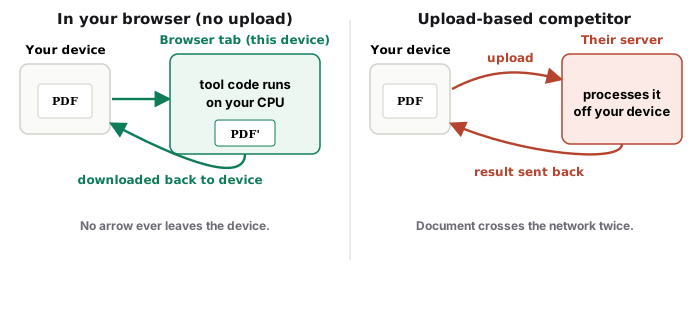
Quick start. Know the pages → Split PDF. Know the chapters → Split by Bookmarks. Know the size limit → Split by Size. All three run in your browser and keep pages byte-for-byte.
By page range or list
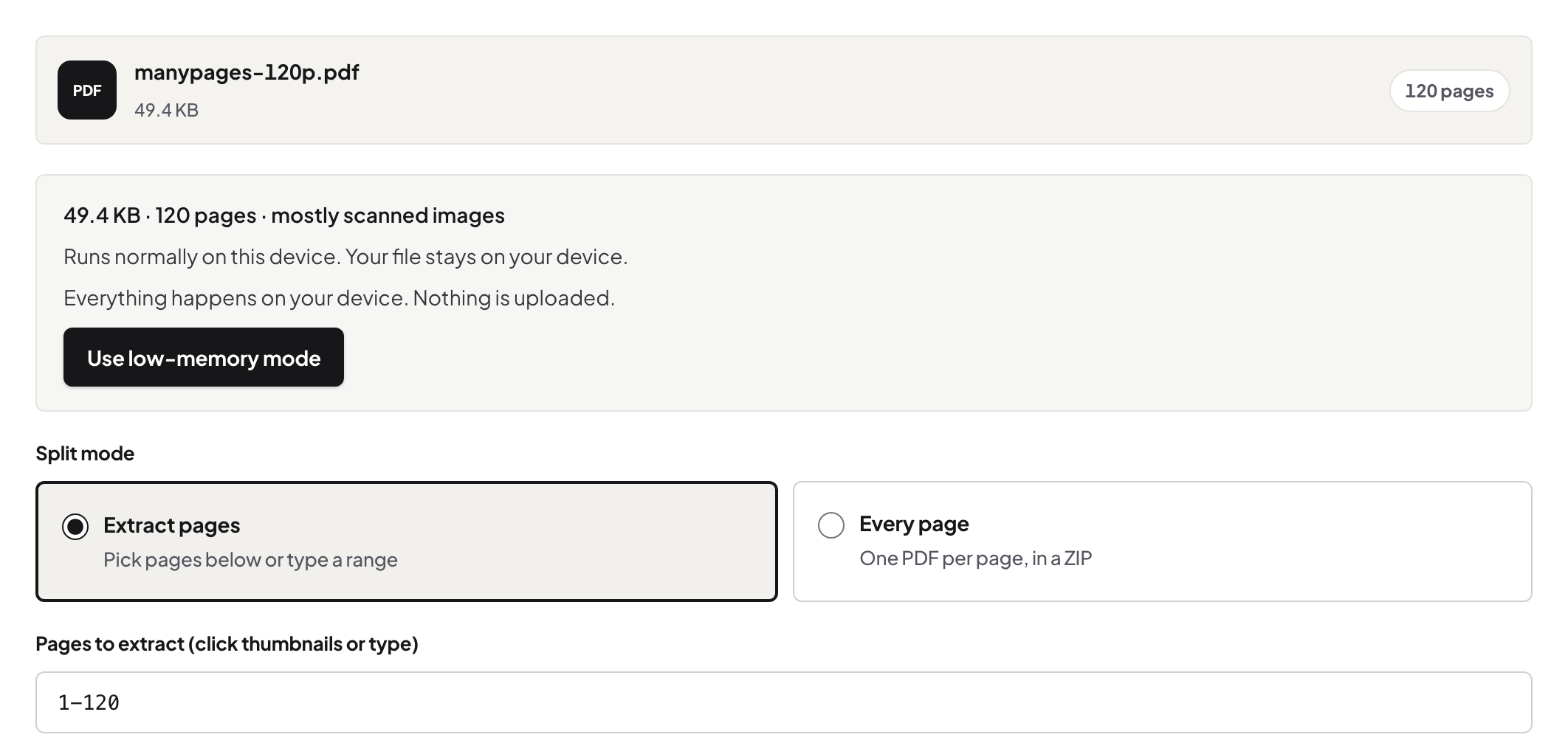
"3–7" extracts a section as one PDF; "1, 4, 9" picks pages; "every page" writes each page as its own file in a ZIP. Use this when you can see the page numbers you need — a chapter that starts on page 12, the two pages a client asked for.
By chapters (bookmarks)
Long documents carry an outline — the bookmarks panel in your reader. Split by Bookmarks reads that outline on your device, lets you pick the level (parts, chapters, sections), and names each file after its bookmark. It is the right tool for a book, a manual, a regulation, an annual report, because the author already decided where the breaks are. The worked example shows a real book.
By file size
A portal says 10 MB; the file is 34 MB. Split by Size finds the page boundaries that keep each part under the cap and names the parts in order. When a single page is itself larger than the cap — a full-page scan — the tool says so for that part instead of pretending. If the goal is one file, compress first; if the goal is several files under a cap, split.
Password-protected files
All three need an open document. Unlock PDF with the password you know, then split.
Mac, Windows, iPhone, Android
Same pages everywhere. Mac Preview can drag pages out one at a time; Windows has no built-in splitter; phones have neither — the browser is the common path. Results download as a PDF or a ZIP.
Troubleshooting
Split by Bookmarks is greyed out. The document has no outline — split by range instead, or add bookmarks in an editor first. Parts are still over the cap. A single page exceeds it; compress that page's scan or accept the named exception. The ZIP is empty. Wait for the outline to load before clicking — the button enables when it is ready.
Frequently asked questions
Does splitting reduce quality?
No. Pages are copied out unchanged.
Can I split every page into its own file?
Yes — "Every page" downloads a ZIP with one PDF per page.
How do I split a book into chapters?
Use Split by Bookmarks, which follows the book's own outline and names the files after the chapters.
Try it yourself
Free, private, no account. Runs entirely in your browser.
Related articles
One book in, one file per chapter out — using the outline the author already made
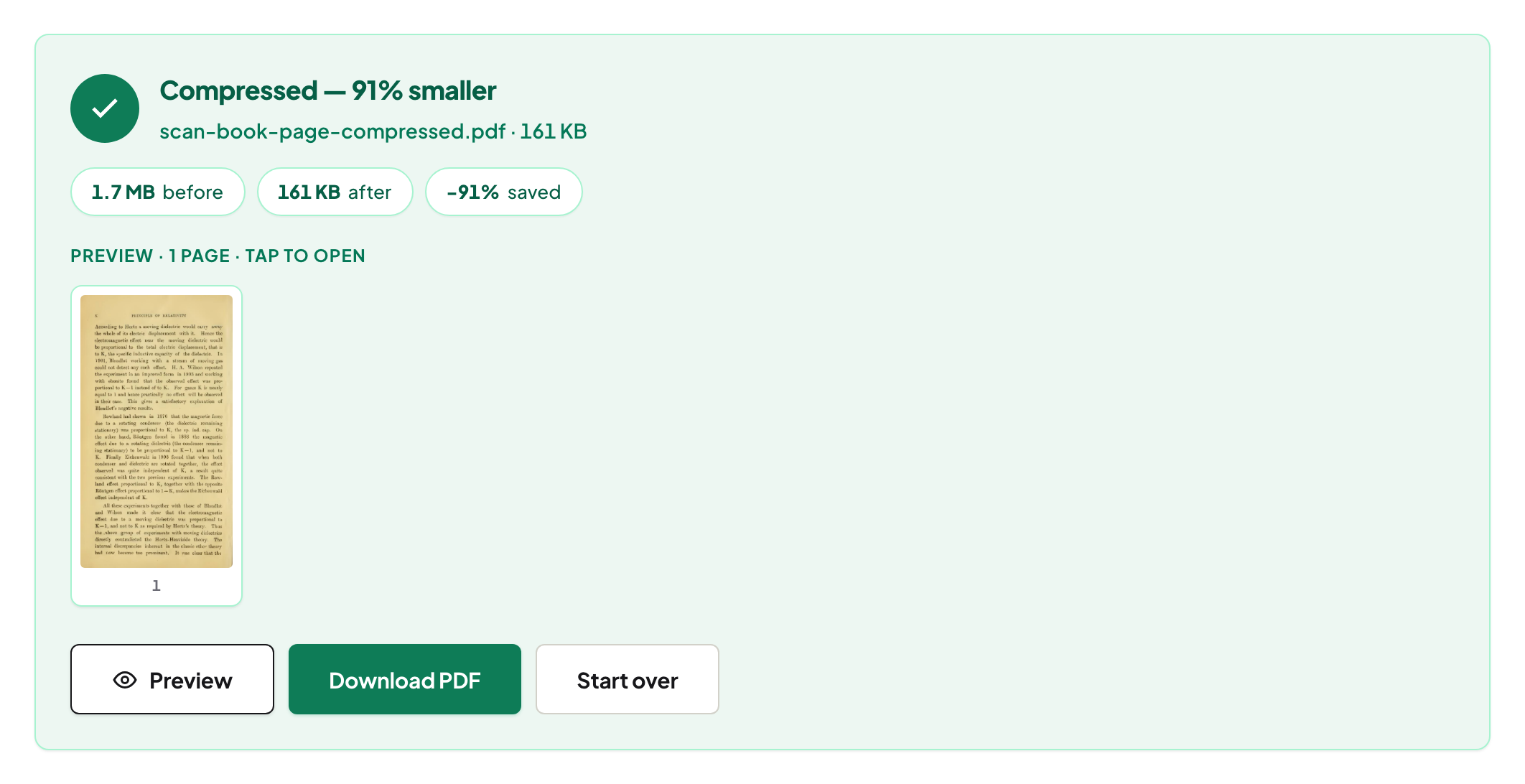
Why a PDF gets huge, and what compression really does about it
Merging PDFs properly: order, size, what survives, and what to check
Balanced and Maximum: what each compression mode actually does to your file
A teacher's week in PDFs: worksheets, slips, scanned homework
From a 400-page scan to searchable chapters, on your own computer