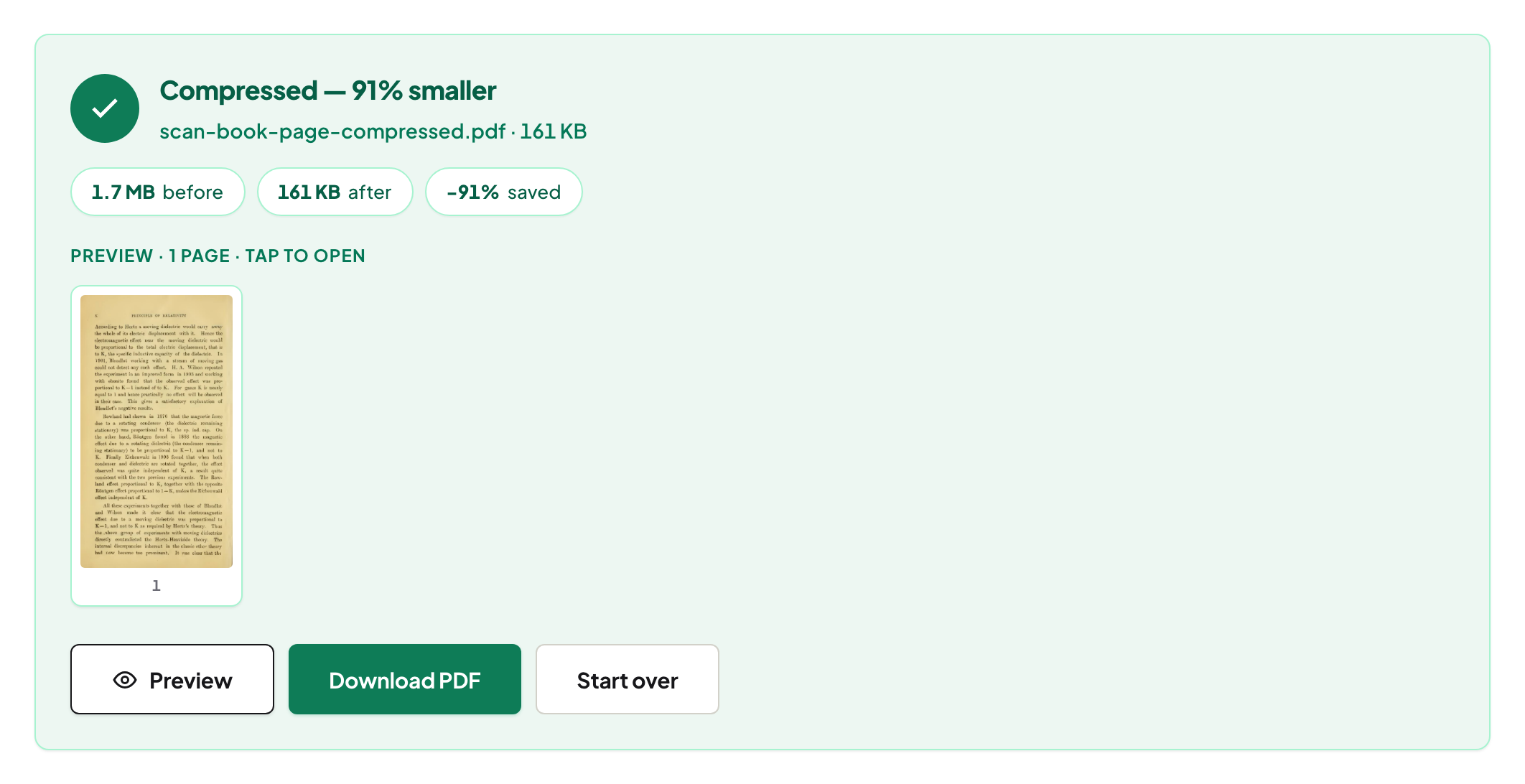
Over the limit: compress, split, or shrink the pictures — which one, in which order
When compression will work, when it will not, when to split by size, and when the fix is the images inside — with real measured numbers.
UnboundPDF is a free suite of 54 PDF and image tools that run entirely in your browser — merge, split, compress, edit text, OCR in 126 languages, redact, sign, convert and archive to PDF/A. Your document is read and written by the page on your own device; there is no document-upload endpoint in the core tools, no account, no watermark and no daily cap. Every result can be checked — with the Network tab, or with the Document Passport the Workspace writes for a chain of steps.
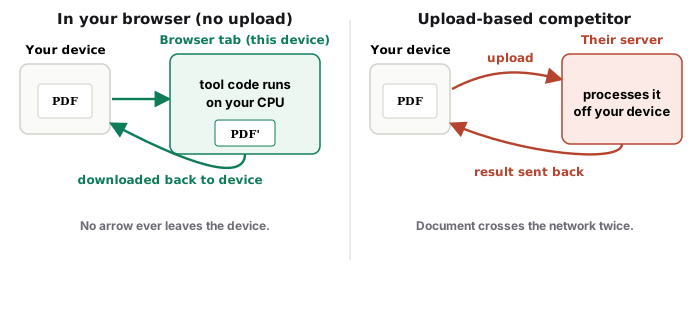
Quick start. Scan or photo-heavy → Compress (Balanced). Already lean or still over → Split by Size. One giant photo inside → resize it and rebuild. The result panel tells you which case you are in.
Step 1 — compress once, read the number
Run Balanced and read the before/after. A scan gives back a lot (a 119 MB scan measured 34% of its size in Chrome on 15 August 2026); an exported report with optimised images gives back little (3% on an already-optimised paper in Chrome on 13 August 2026). The number decides the next step.
Step 2 — still over? Split by size
Compression has a floor; a cap does not care. Split by Size cuts at page boundaries that keep each part under the limit and names the parts. When a single page exceeds the cap by itself, the tool says so for that part.
Step 3 — one page is the problem
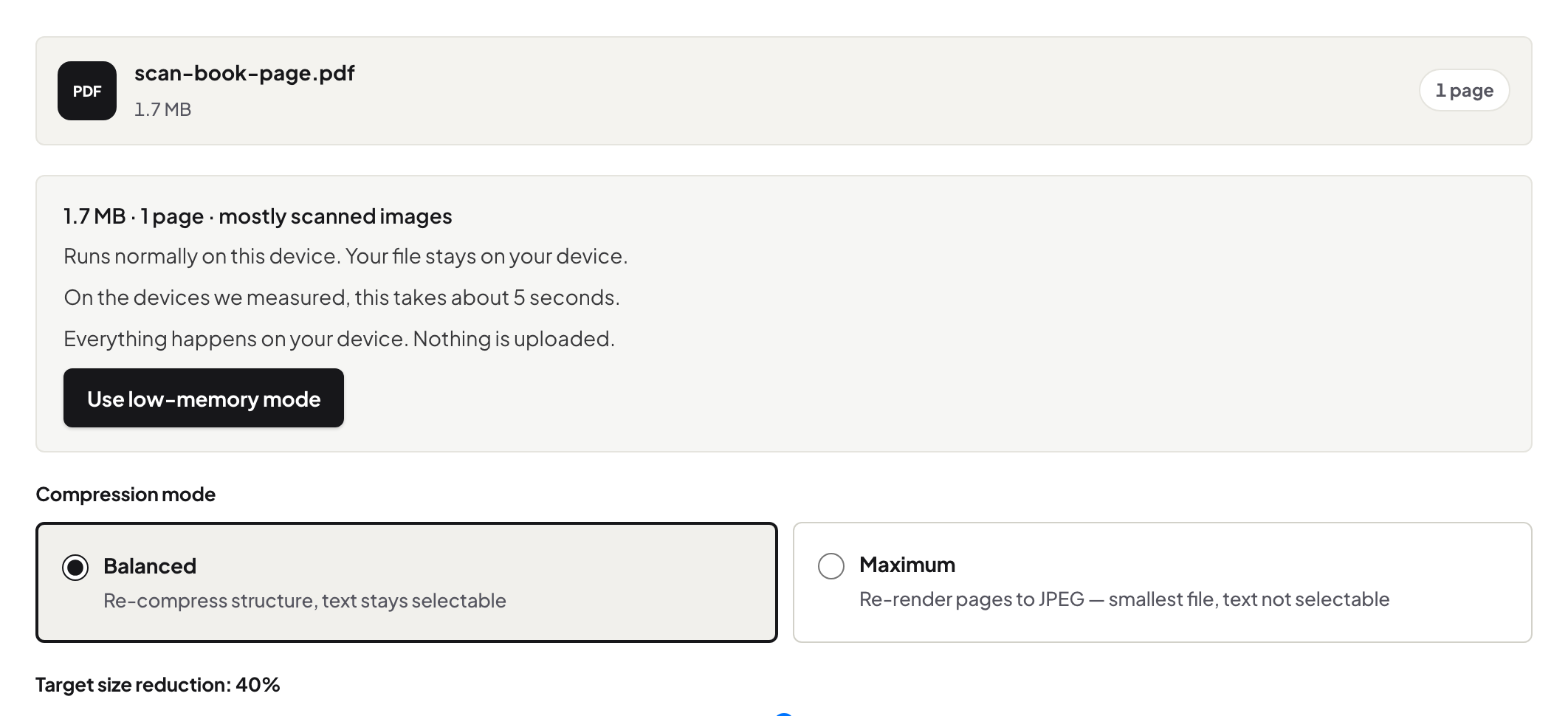
A single 40 MB page is usually one enormous embedded photo. Extract Images shows the dimensions; Resize Image brings it to a sane size; JPG to PDF and a merge rebuild the page. Maximum compression would also work but turns the page into a picture.
What not to do
Do not run compression three times — generation loss on photos, no gain on text. Do not zip a PDF for email — most portals reject it and it barely helps. Do not use Maximum on a contract — text stops being selectable.
Password-protected files
An encrypted PDF cannot be re-encoded or split; Unlock PDF with the password first.
Frequently asked questions
What size limit do email services use?
Commonly 20–25 MB for attachments; many company gateways use 10 MB; portals state their own. Aim under the stated cap with margin.
Will compression make my text blurry?
Balanced leaves text untouched. Maximum renders pages and can — use it only for photo-only documents.
Can I send several parts?
Yes — Split by Size names them in order; say "part 1 of 3" in the message.
Try it yourself
Free, private, no account. Runs entirely in your browser.