Why a PDF gets huge, and what compression really does about it
A 40-page report at 90 MB isn't mysterious: it's images. Where PDF weight comes from, what our compressor does, and when splitting beats squeezing.
UnboundPDF is a free suite of 54 PDF and image tools that run entirely in your browser — merge, split, compress, edit text, OCR in 126 languages, redact, sign, convert and archive to PDF/A. Your document is read and written by the page on your own device; there is no document-upload endpoint in the core tools, no account, no watermark and no daily cap. Every result can be checked — with the Network tab, or with the Document Passport the Workspace writes for a chain of steps.
A forty-page report that weighs 90 MB is not mysterious, and it is not bloat in some vague sense. It is images — nearly always, and nearly always images carrying far more pixels than their printed size can show. Knowing that changes what “compress” should mean, and explains why some PDFs shrink dramatically while others barely move — by how much is browser-dependent, like every compression result on this site (see below).
Where the weight lives
Text is almost free: a page of prose is a few kilobytes of drawing instructions plus a shared font. Photos are the opposite: a phone-scanned page is a multi-megapixel photograph, and a deck with a screenshot on every slide is a photo album wearing a suit. Fonts add a little (a subset per face), structure adds almost nothing. So a document's weight is roughly the sum of its images — which is why a contract exported from Word is 200 KB while its scanned twin is 40 MB.
What Balanced mode does — named, because most tools won't
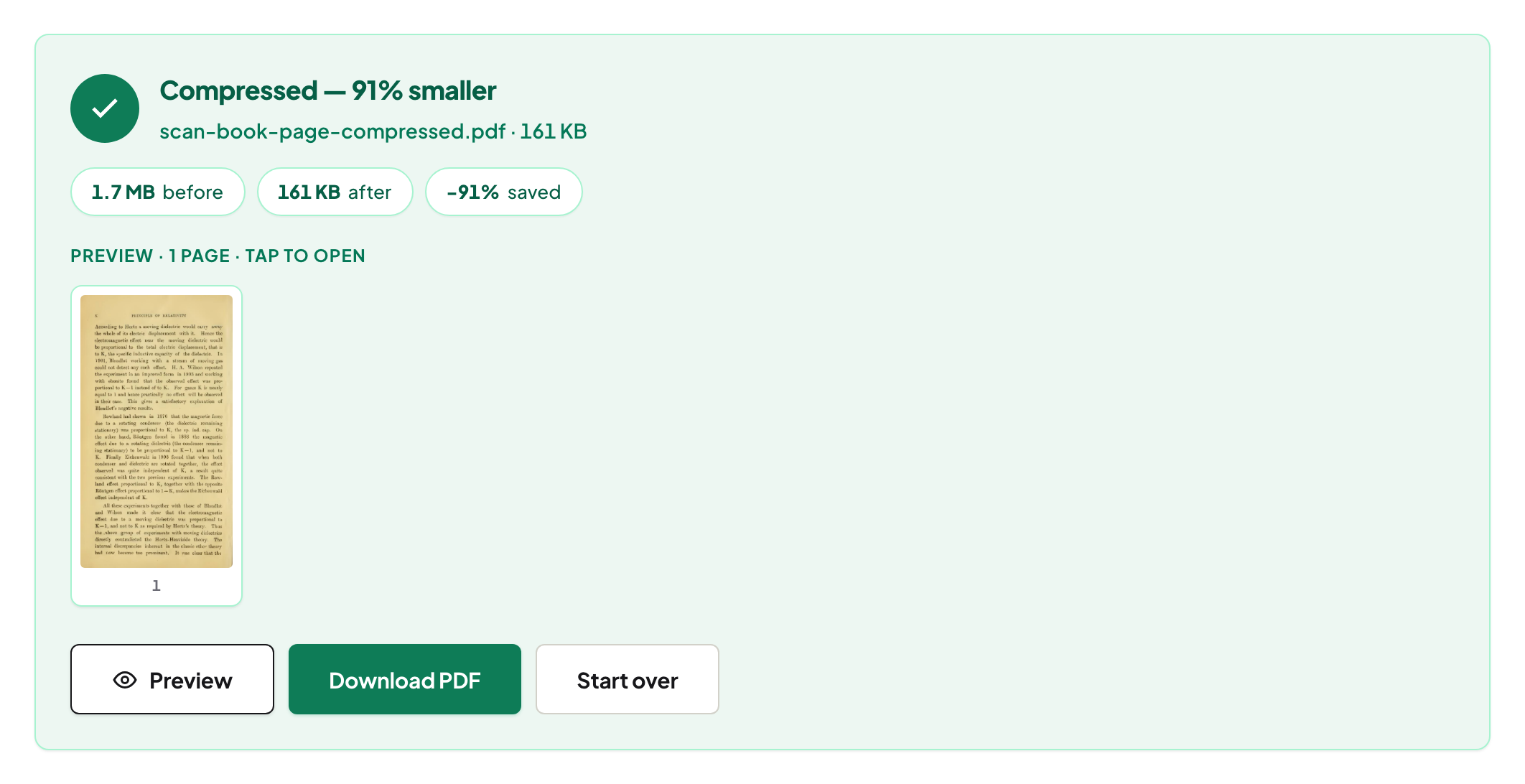
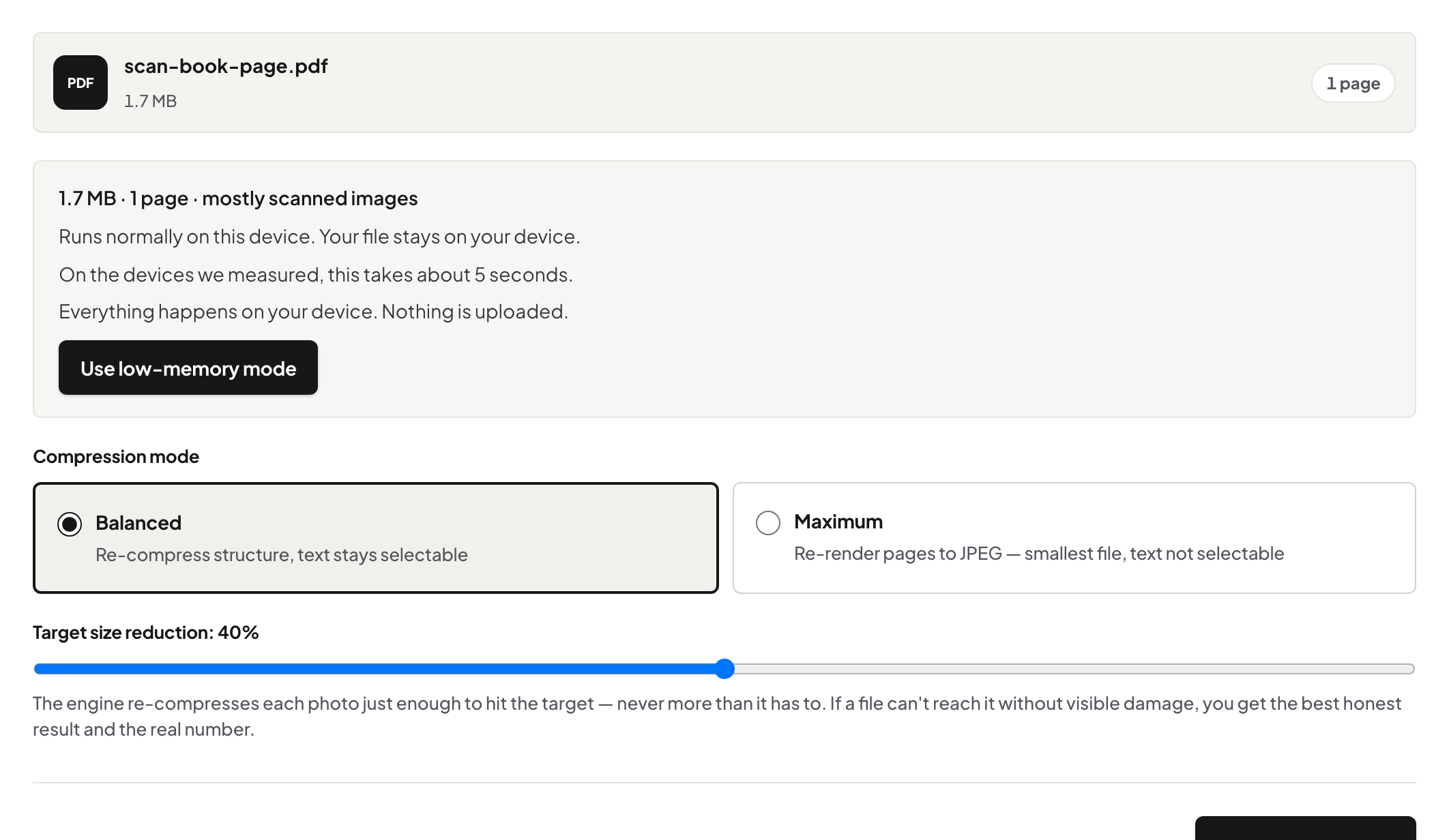
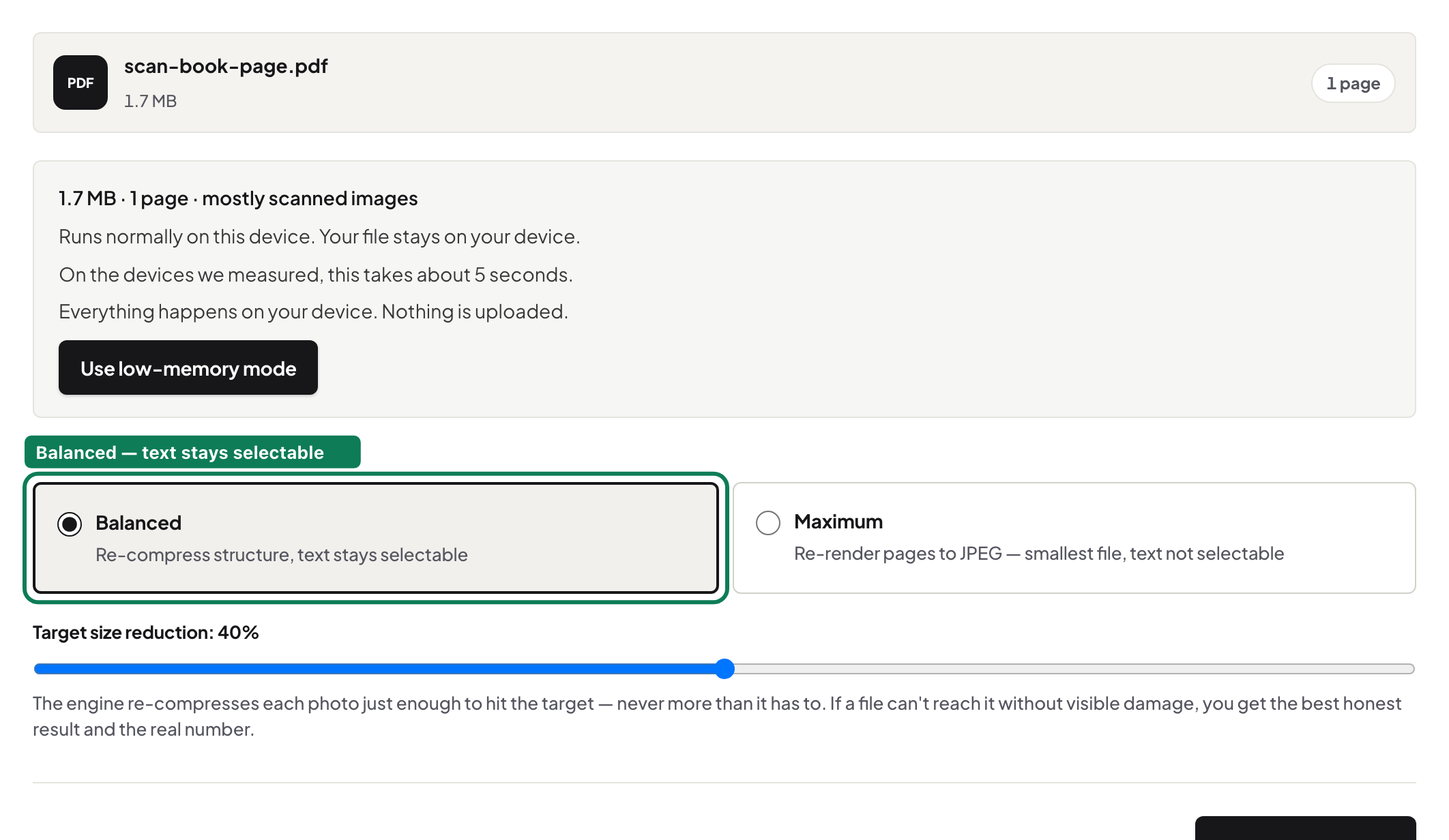
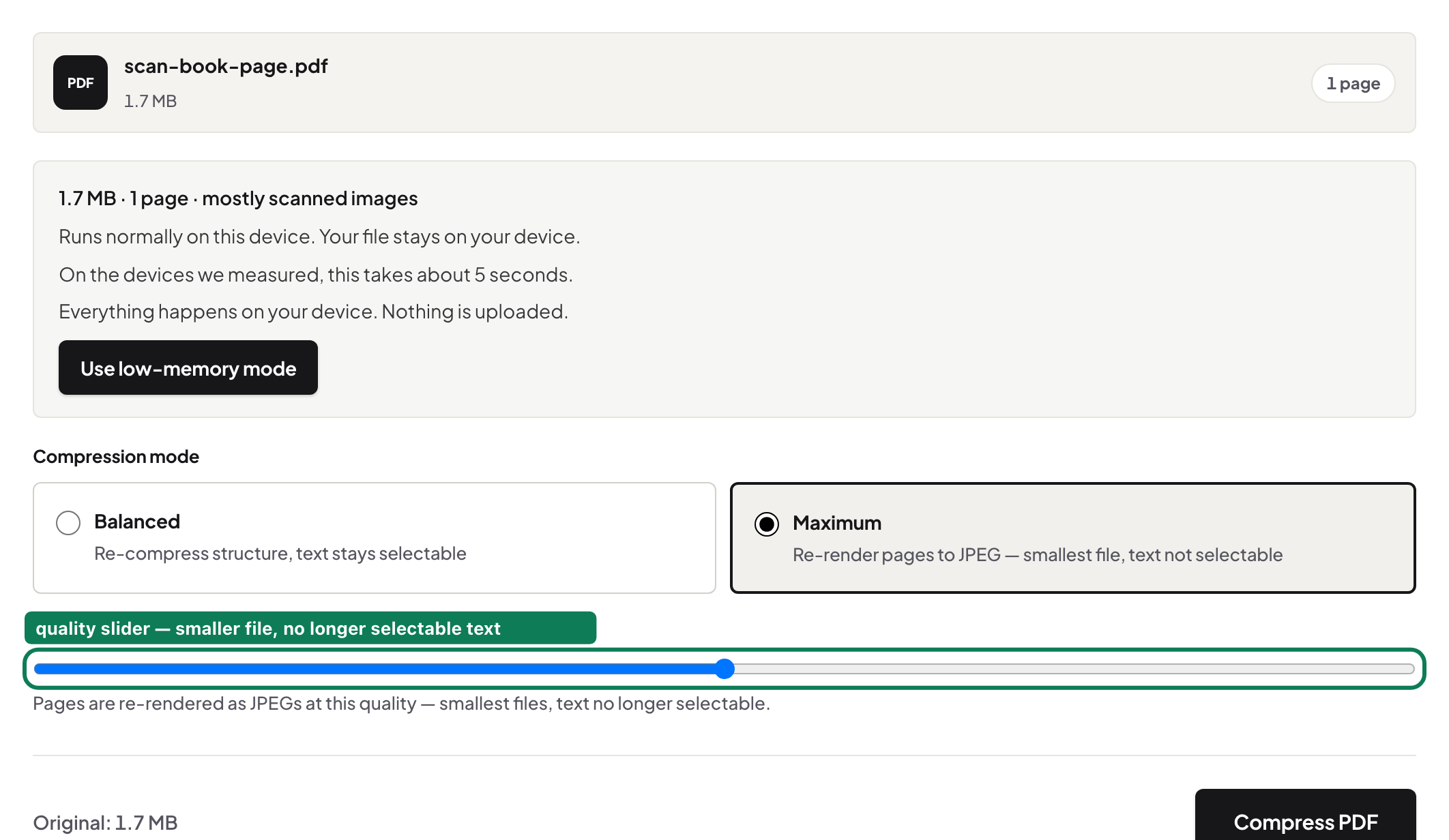
Balanced re-compresses each photo just enough, working inside the JPEG's own coefficient data so untouched parts of an image are not decoded and re-encoded — no compounding generation loss — and it leaves the text layer alone. Text stays selectable; pages remain real pages. Run it on an image-heavy file and the result panel shows the before/after — on our test scan, in Chrome, 1.7 MB became 161 KB, a measured 91% smaller (the exact ratio is browser-dependent, like every compression result on this site); run it on a text-only file and the file barely changes, because there was nothing heavy to shrink. A compressor that claims big savings on every file is describing marketing, not files.
Maximum mode is a different bargain
Maximum renders pages to images at a quality you pick. It goes smaller — sometimes much smaller — and the price is stated before you click: the output's pages are pictures, so text is no longer selectable or searchable. Right for a photo-heavy attachment that just has to fit; wrong for a contract someone will need to quote from.
When splitting beats squeezing
Compression has a floor: the content that is genuinely there. When a file must fit a portal's limit and compression has already done its work, the next move is fewer pages per file, not harder squeezing — split by range or split by size, which cuts at whatever boundary keeps each part under your limit. The specific numbers game for common targets is in compress to 1 MB and compress to 100 KB.
The part nobody uploads
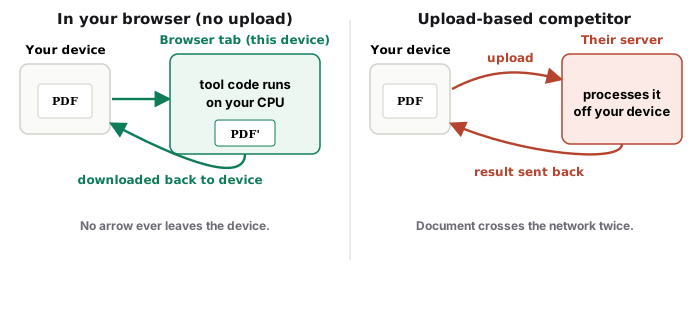
All of this runs in your browser: the report is read, re-compressed and rewritten on your machine. Nothing to upload also means no upload time — on a heavy file, skipping the round trip to someone's server is itself the fastest step of the job.
Frequently asked questions
Why does my PDF barely shrink?
Because it's mostly text and vector graphics, which are already small. Compression's savings come from images; a file without heavy images has little to give back.
Does compressing ruin quality?
Balanced re-compresses photos moderately and leaves text untouched — readable pages, selectable text. Maximum trades text selectability for size and says so before you choose it.
What if it still doesn't fit under the limit?
Split the file. Fewer pages per part beats over-squeezing; Split by Size cuts wherever keeps each part under your limit.
Try it yourself
Free, private, no account. Runs entirely in your browser.
Related articles
One application, five sources: assembling a single PDF that reads right
Inside a PDF repair: four strategies, and which one worked
One document, several tools, and a receipt for the whole chain
Merging PDFs properly: order, size, what survives, and what to check
Getting the images out of a PDF at the quality they went in
Turning a PDF table into a spreadsheet you can actually sum
Three ways to split a PDF, and when each one is right
Balanced and Maximum: what each compression mode actually does to your file
Editing text in a PDF so nobody can see it was edited
Using PDF tools without signing up — and what you are trading when a site makes you
Photos inside the PDF, or pictures of the pages? Two tools, one decision
Over the limit: compress, split, or shrink the pictures — which one, in which order