How to compress a PDF to 100KB (and when that's possible)
Updated 20 August 2026
A one-page scan or short document can usually get under 100KB: open Compress PDF in your browser, run Balanced first, and switch to Maximum only if you still miss the target. A long or photo-heavy PDF cannot reach 100KB intact — split it or lower the page count instead.
Get a PDF under 100KB free, in your browser, no upload. Real measured results, what reaches the target, and what cannot.
UnboundPDF is a free suite of 54 PDF and image tools that run entirely in your browser — merge, split, compress, edit text, OCR in 126 languages, redact, sign, convert and archive to PDF/A. Your document is read and written by the page on your own device; there is no document-upload endpoint in the core tools, no account, no watermark and no daily cap. Every result can be checked — with the Network tab, or with the Document Passport the Workspace writes for a chain of steps.
- Open Compress PDF and add your file — it is processed on your device, never uploaded.
- Run Balanced first and read the real before/after sizes it reports.
- Still over 100KB? Switch to Maximum and lower the image-quality slider until you fit.
- If even Maximum cannot reach 100KB, reduce pages instead — split the file or send the pages you need.
100KB is a hard target. Everything below is a real measurement from 13 August 2026, made by driving the compress tool in a browser over public test documents. No number on this page is estimated.
What actually fits under 100KB
Short scans do. A single-page scanned letter (141 KB) came out at 84.6 KB in Balanced mode — under the target with its pages untouched as scans — and at 57 KB in Maximum at the default quality, or 42.2 KB with the slider at its floor. Any of the three fits a 100KB portal cap with room to spare.
What doesn't — measured, not guessed
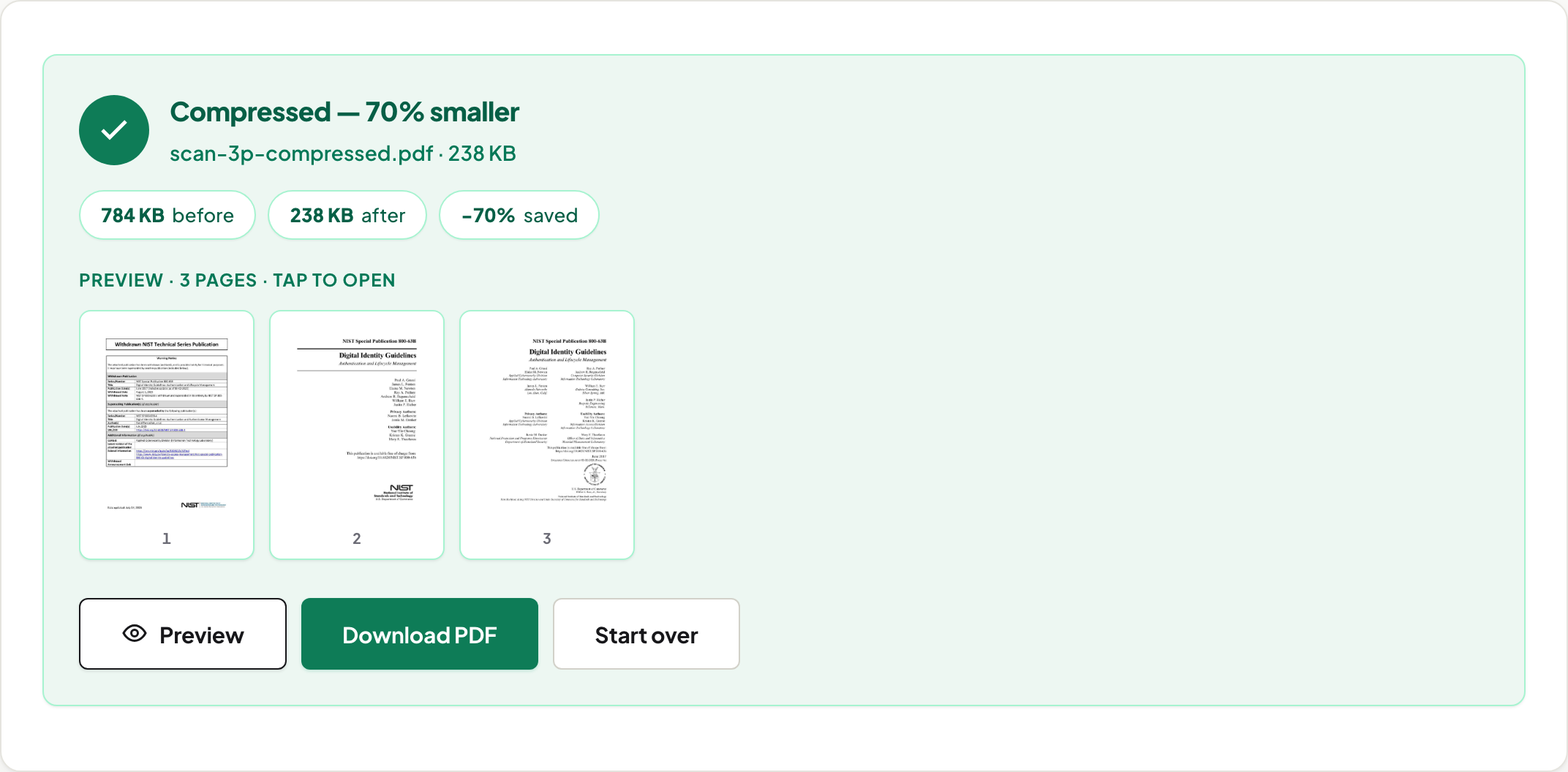
A 3-page scan (784 KB) reached 174 KB in Chrome at Maximum's lowest quality — a 78% cut, and still nearly double the target; that ratio is Chrome's, and varies by browser like every Maximum-mode result on this site. An 80-page report stayed above 1 MB. The pattern is simple: 100KB is roughly one page of scanned content, or a few pages of plain text. Multi-page documents get under it only by losing pages, not quality.
The order that gets you smallest
Run Balanced first: it re-compresses the images inside the file just enough to hit the reduction you asked for, and reports the result when it can't ("You asked for 40% and the answer is 3%" is the tool's own wording). If Balanced leaves you over target, Maximum re-renders pages to JPEGs — smallest possible, at the cost of selectable text. On scans that cost is zero, which is why scans are the one class of document where Maximum is the obvious choice.
When the answer is fewer pages, not more compression
If Maximum at low quality still misses 100KB, the file has more content than the budget holds. Split PDF extracts just the pages you need; Split by Size cuts the document into parts each under a size you set — useful when a portal accepts several files. Both run in your browser like the compressor.
Scanned at too high a resolution?
Phone-scanned pages often carry far more pixels than any reviewer needs. Compressing handles that — but if the scan is also crooked, straighten it first; a deskewed page compresses more predictably. If the document must stay searchable, run OCR in your browser before compressing in Balanced mode, which preserves the text layer.
Scope
How far a file compresses is set by what is in it. Scans give back the most; text-only PDFs are already lean — the same tool cut a 51-page pure-text document by 20% in Chrome, and that path is the same in every browser because there is nothing to rasterise. Locked files are unlocked first with Unlock PDF. A service advertising one fixed ratio for every PDF is describing its marketing; we report the number your file actually produced.
Nothing to upload means nothing to leak
Files being squeezed for a size cap are usually about to be submitted somewhere that matters. Compressing on your own device means no copy on a stranger's server; the PDF Privacy Lab shows how to verify that claim in two minutes. Related targets: 500KB · 1MB · email limits · government portals.
What the compressor actually does
No magic: a PDF's size is nearly always its images. Balanced mode re-compresses each photo just enough, working in the JPEG's own coefficient domain so untouched parts of the image are not re-encoded, and leaves the text layer alone — text stays selectable, and the pages remain real pages. Maximum mode renders pages to images at a quality you choose, which goes smaller but trades away selectable text; the tool says so before you pick it. Fonts and structure are carried over, not rebuilt. That is the whole method, stated because most tools won't name theirs — and it is why a text-only PDF barely shrinks: there is nothing heavy to re-compress, and the fix is fewer pages (split) rather than harder squeezing.
A password-protected file first needs unlocking
An encrypted PDF can't be recompressed as-is — remove the password (you need to know it), compress, and re-protect with Protect PDF if it should stay locked.
Frequently asked questions
Can every PDF be compressed to 100KB?
No, and a tool that promises that is not being straight with you. A one-page scan or short text document usually can. A long report or photo-heavy file cannot get under 100KB and stay usable — reduce the page count instead, or accept a larger target.
Is my PDF uploaded to a server to compress it?
Not here. UnboundPDF compresses the file in your browser on your own device. You can verify that in your browser's Network tab while the tool runs — no request carries your document.
Will the text still be selectable at 100KB?
In Balanced mode, yes — text and vector graphics are untouched. Maximum mode re-renders pages as images to go smaller, so text stops being selectable. For a tiny target like 100KB, scans lose nothing (they were images already); text documents should stay in Balanced.
Does the compressed file have a watermark?
No. The output is your document, smaller — no watermark, no account, no page cap.