Merging PDFs properly: order, size, what survives, and what to check
Merge PDFs in your browser — reading order, what happens to bookmarks, size after merging, and a two-minute check that the result is right.
UnboundPDF is a free suite of 54 PDF and image tools that run entirely in your browser — merge, split, compress, edit text, OCR in 126 languages, redact, sign, convert and archive to PDF/A. Your document is read and written by the page on your own device; there is no document-upload endpoint in the core tools, no account, no watermark and no daily cap. Every result can be checked — with the Network tab, or with the Document Passport the Workspace writes for a chain of steps.
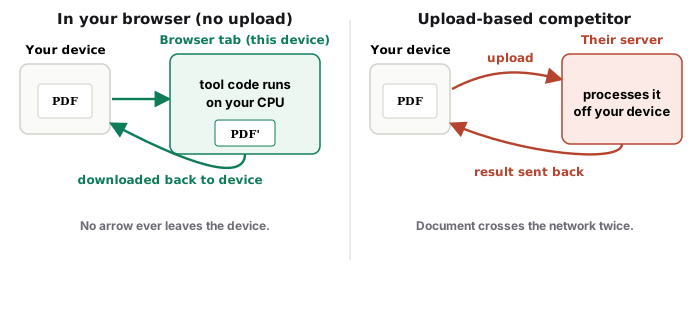
Quick start. Open Merge PDF, add the files, drag them into reading order, click Merge, download. The output has exactly the sum of the pages, nothing re-encoded, and the file never leaves your device.
What a merge does, and does not, change
A merge copies pages from several documents into one new document in the order you set. The pages themselves are not touched: text stays text, images keep their original encoding, and a page that was 600 KB in its source is 600 KB in the result. What does not automatically carry across is document-level structure — the outline (bookmarks) of each source, its form fields' names, its metadata. The merged file gets a clean identity of its own. If each source's bookmarks matter to the reader, consider keeping the files separate in a zip, or rebuild a short outline afterwards.
Order is the whole job
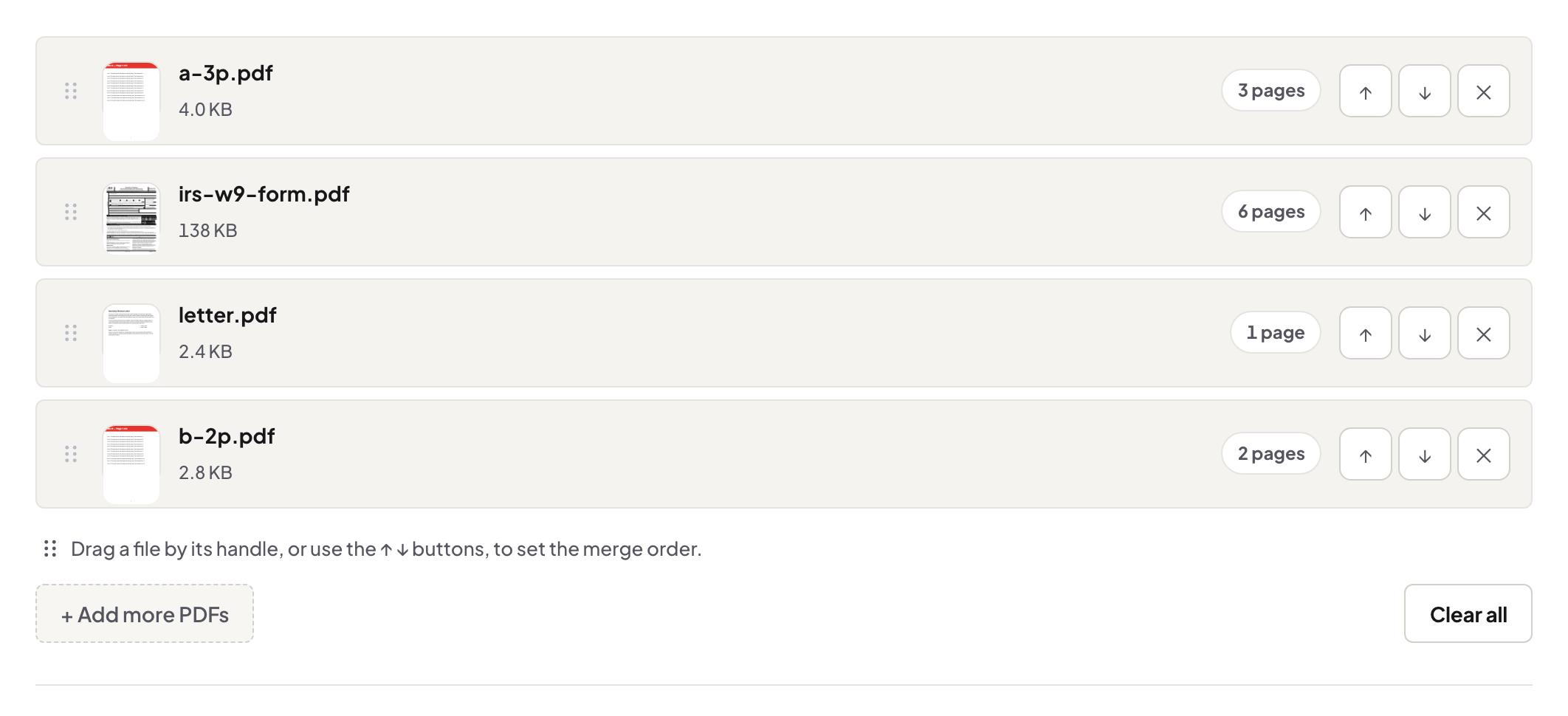
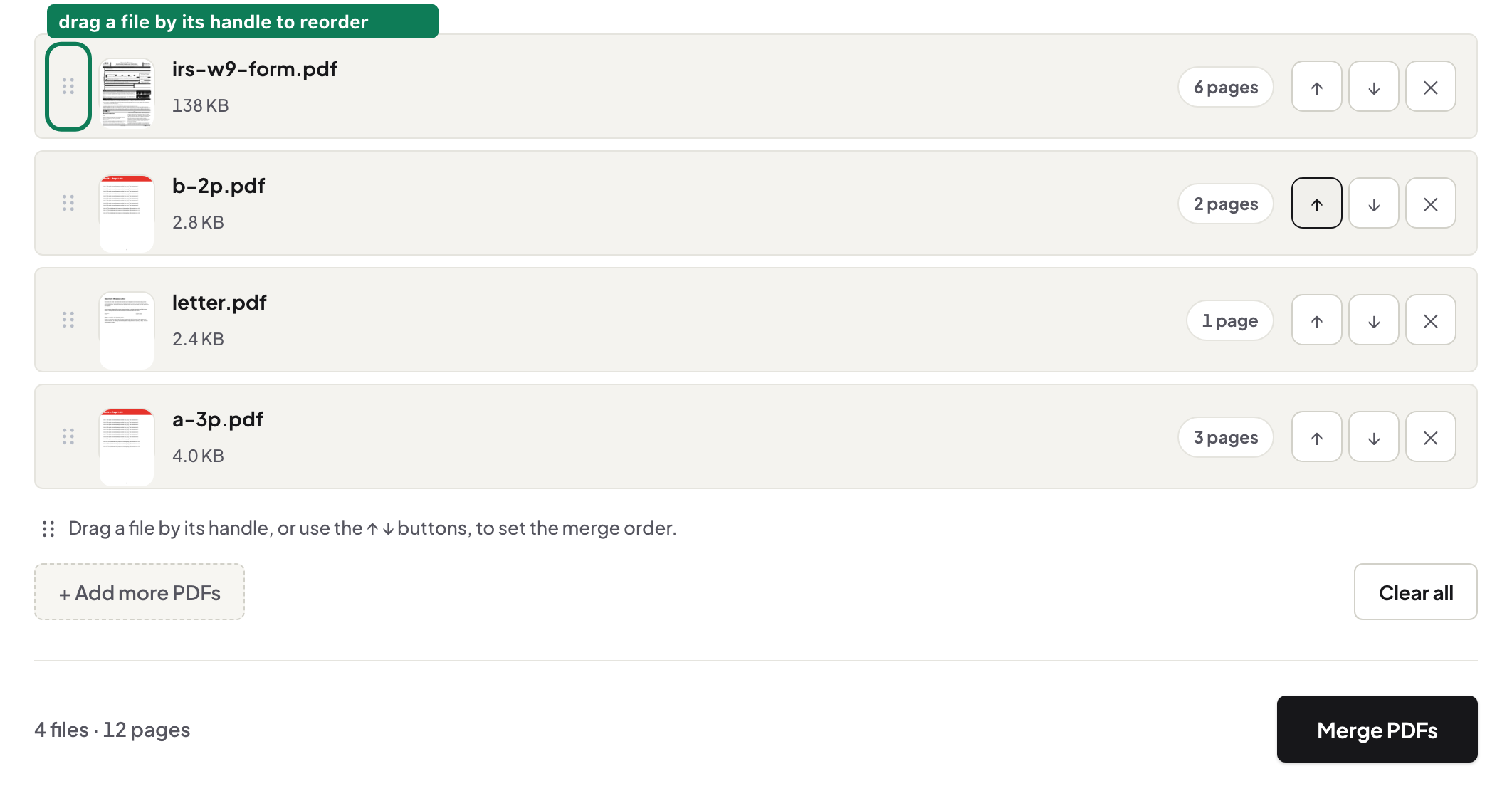
The merge follows the list exactly. Put the document people read first at the top — the form, then the evidence in the order the form mentions it. Rename files before adding them if it helps you see the sequence ("01-form", "02-id", "03-proof"), because the list shows names, and a misnamed file is how the wrong page ends up on page one.
Photos and scans in the same merge
The merge combines PDFs. A photographed receipt or a scanned certificate goes through JPG to PDF first — it takes several images at once at their own resolution — and the resulting PDF joins the list. Two honest steps rather than one that hides a conversion.
Size after merging
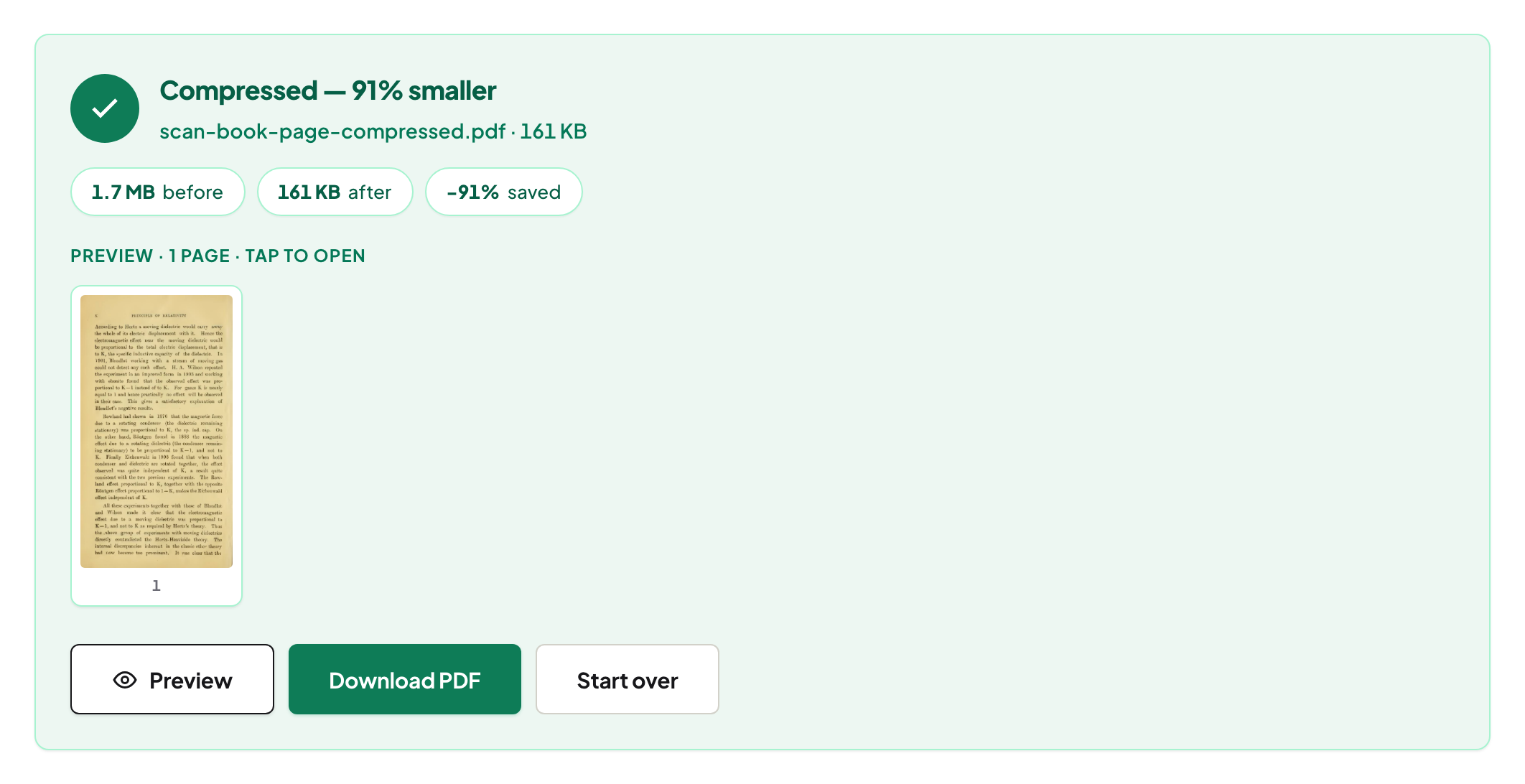
A merged file weighs the sum of its parts; a merge does not compress. If the bundle must fit an email or a portal cap, run Compress PDF on the result (Balanced keeps text selectable) or cut it with Split by Size. The article on why PDFs are large explains which files give back size and which do not.
Password-protected files
An encrypted PDF cannot be merged until it is opened. Unlock PDF removes a password you know; the unlocked copy then merges normally. The merge will tell you by name which file is locked rather than failing quietly.
Mac, Windows, iPhone, Android, Chromebook
The same page does the job on all of them; the browser is the whole requirement. On a phone, add files from Files or Drive, drag to reorder with a long press, and the merged PDF lands in your downloads. On a Mac, Preview can also merge by dragging thumbnails between windows — it works, and it silently re-saves the file; ours leaves pages byte-for-byte as they were and shows you the page count.
The two-minute check
Three checks on the output, in any reader: the page count equals the sum of the parts (the result panel reports it); scroll to the first page of each section — the commonest mistake is two files swapped in the list; and select a line of text inside a formerly separate document to confirm pages came through as pages, not pictures. In the Workspace the merge is one step in a chain, and the Document Passport records the input and output hashes so the check is repeatable by anyone.
Troubleshooting
A file will not add. It is not a PDF (convert images first) or it is encrypted (unlock first). The merged file opens with an error. One source is damaged; run it through Repair PDF and merge again. Bookmarks disappeared. Expected — see above. The result is huge. Compress it, or split by size.
Privacy
Everything here ran in your browser; the files were read by the tab and the result was written by it. That is why it is comfortable to merge an application bundle with an ID scan in it. The short version is in merge PDFs privately; the method to verify it yourself is the Privacy Lab.
Frequently asked questions
Does merging reduce quality?
No. Pages are copied, not re-rendered or re-compressed; text stays selectable and images keep their original encoding.
Can I merge a PDF with a JPG?
Convert the JPG with JPG to PDF first (several images become one PDF), then merge. The merge tool itself combines PDFs.
Why did my bookmarks vanish?
Bookmarks belong to each source document's outline and are not combined by the merge. Keep files separate if navigation matters, or add page numbers so sections can be cited.
Is there a file limit?
The work happens on your device, so large bundles take as long as your machine needs; the tool checks the documents against your device before it starts and tells you what it found.
Try it yourself
Free, private, no account. Runs entirely in your browser.
Related articles
One application, five sources: assembling a single PDF that reads right
Why a PDF gets huge, and what compression really does about it
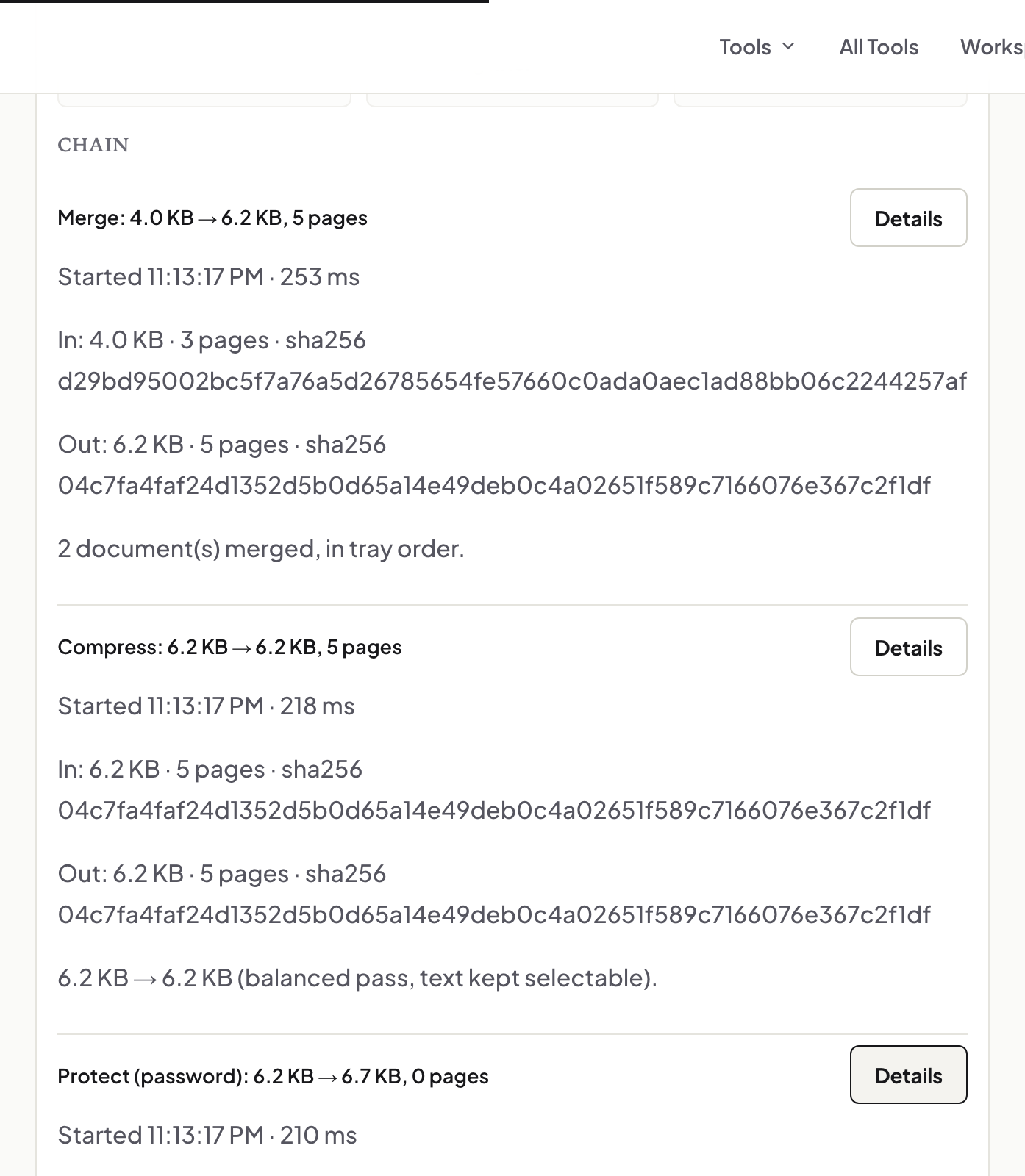
One document, several tools, and a receipt for the whole chain
Three ways to split a PDF, and when each one is right
Invoices in, one numbered bundle out: a monthly routine that takes ten minutes
Building the application bundle recruiters actually want
Why the page is sideways again: view rotation vs saved rotation
Locked PDFs: open, unlock, re-protect — and why no tool here guesses passwords