Shrink a PDF on your iPhone in Safari — no app, nothing uploaded
Compress a PDF on an iPhone in the browser: open the tool in Safari, add the file from Files or Mail, download the smaller copy. No app, no upload.
UnboundPDF is a free suite of 54 PDF and image tools that run entirely in your browser — merge, split, compress, edit text, OCR in 126 languages, redact, sign, convert and archive to PDF/A. Your document is read and written by the page on your own device; there is no document-upload endpoint in the core tools, no account, no watermark and no daily cap. Every result can be checked — with the Network tab, or with the Document Passport the Workspace writes for a chain of steps.
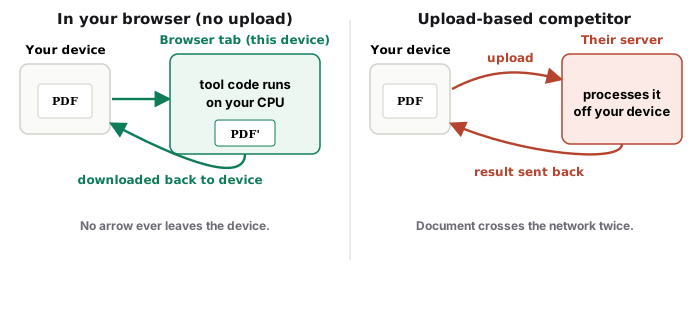
Quick start. Open Compress PDF in Safari, add the PDF from the Files picker, pick Balanced, and download. The work happens in the tab on the phone — the document is not uploaded anywhere.
Getting the PDF into the tool
The add button opens the iOS file picker, which reaches everything the Files app can see: Downloads, iCloud Drive, third-party storage apps. A PDF that arrived by email is easiest to route through Files first — in Mail, hold the attachment, Save to Files, then pick it in the tool. The same picker path works from Messages and WhatsApp saves.
Which mode on a phone
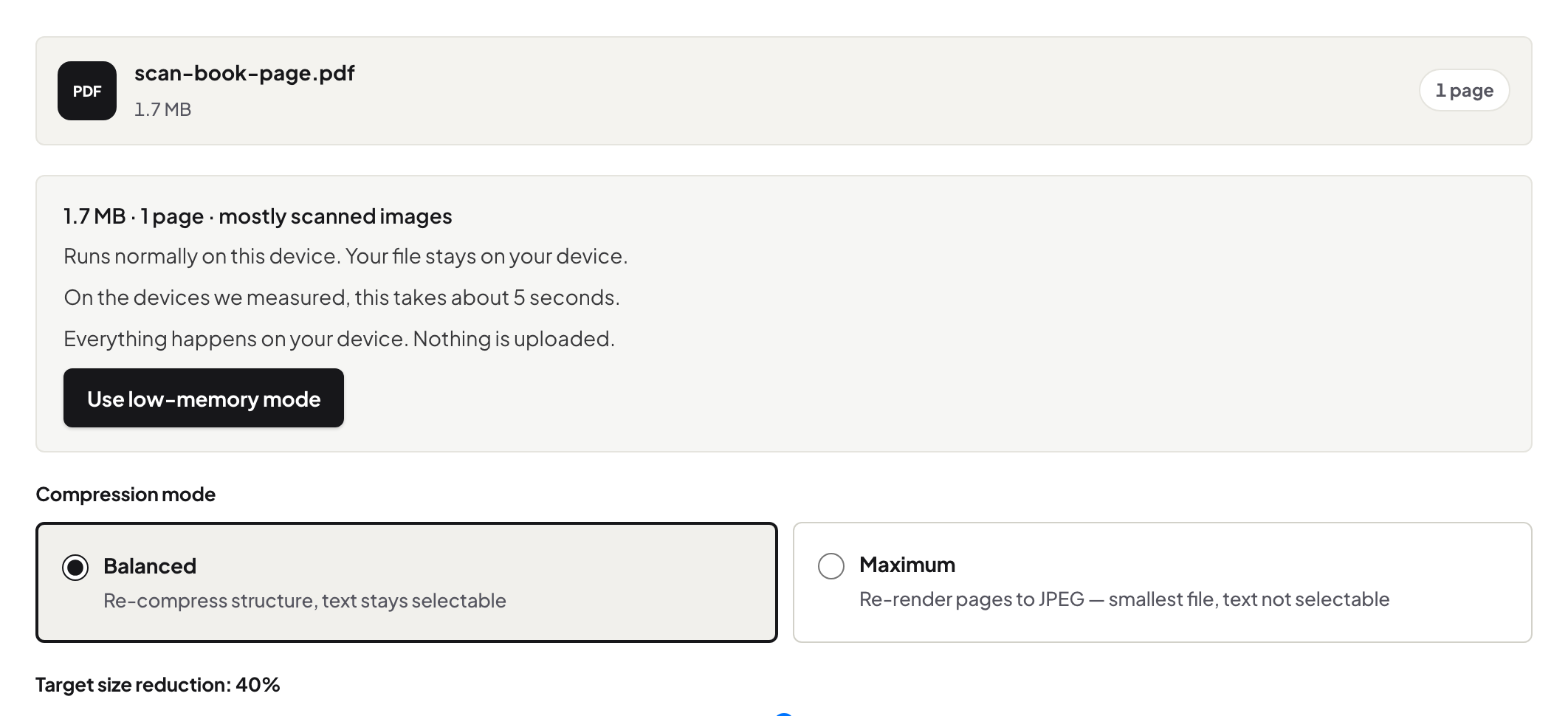
Balanced re-compresses images and strips what the file does not need while keeping text as text — the right default for anything you will send on. Maximum renders each page to an image at a chosen quality: smaller still, but text stops being selectable, so keep it for scans and photo-heavy files where nobody will copy text anyway. The result size is shown before you commit.
Where the file lands, and sending it on
The compressed copy goes to Safari's downloads — tap the download icon in the address bar to open it, or find it in Files. From there the share sheet sends it to Mail, WhatsApp, or a drive. The original is untouched; you now have both.
iPhone against a laptop
The phone does the same work the laptop would — same engine, same modes. A very large file simply takes longer on a phone, and Safari is happier when it is the front app while the job runs. For a 200 MB scan bundle, a laptop is the kinder tool; for the everyday attachment, the phone is plenty.
Troubleshooting
The picker does not show the PDF. It is probably still inside Mail or another app — save it to Files first. The download seems to vanish. Check Safari's download list (the arrow icon) and the Files app's Downloads folder. Not small enough for the portal. Try Maximum, or see the size decision tree — sometimes splitting beats squeezing.
Frequently asked questions
Do I need to install anything?
No. The tool is a web page; Safari runs it. The engine loads with the page and the document stays on the phone.
Where does the smaller file go?
Safari's download list — the Files app, in the folder Safari is set to save to (Downloads by default, on the phone or in iCloud Drive).
Will the text still be selectable?
With Balanced, yes. Maximum renders pages to images to go smaller, and selectable text is the trade.
Try it yourself
Free, private, no account. Runs entirely in your browser.