Turn camera photos into a single PDF, on the phone that took them
Combine phone photos into one PDF in the browser: add them from your library, set the order and page size, download. Receipts, IDs, homework, whiteboards.
UnboundPDF is a free suite of 54 PDF and image tools that run entirely in your browser — merge, split, compress, edit text, OCR in 126 languages, redact, sign, convert and archive to PDF/A. Your document is read and written by the page on your own device; there is no document-upload endpoint in the core tools, no account, no watermark and no daily cap. Every result can be checked — with the Network tab, or with the Document Passport the Workspace writes for a chain of steps.
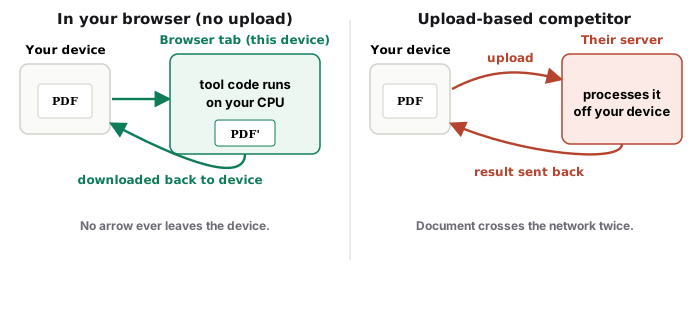
Quick start. Open JPG to PDF on the phone, add the photos (the picker reaches your photo library), put them in order, download one PDF. Nothing is uploaded — which matters when the photos are receipts, an ID, or a signed page.
Why a PDF and not just the photos
Because the recipient asked for one file, in order, that prints on paper-shaped pages. Ten photos in a chat arrive as ten downloads in whatever order the network felt like; one PDF arrives as a document. Expense reports, homework submissions, insurance claims and lease returns all really want the PDF.
Order and page size
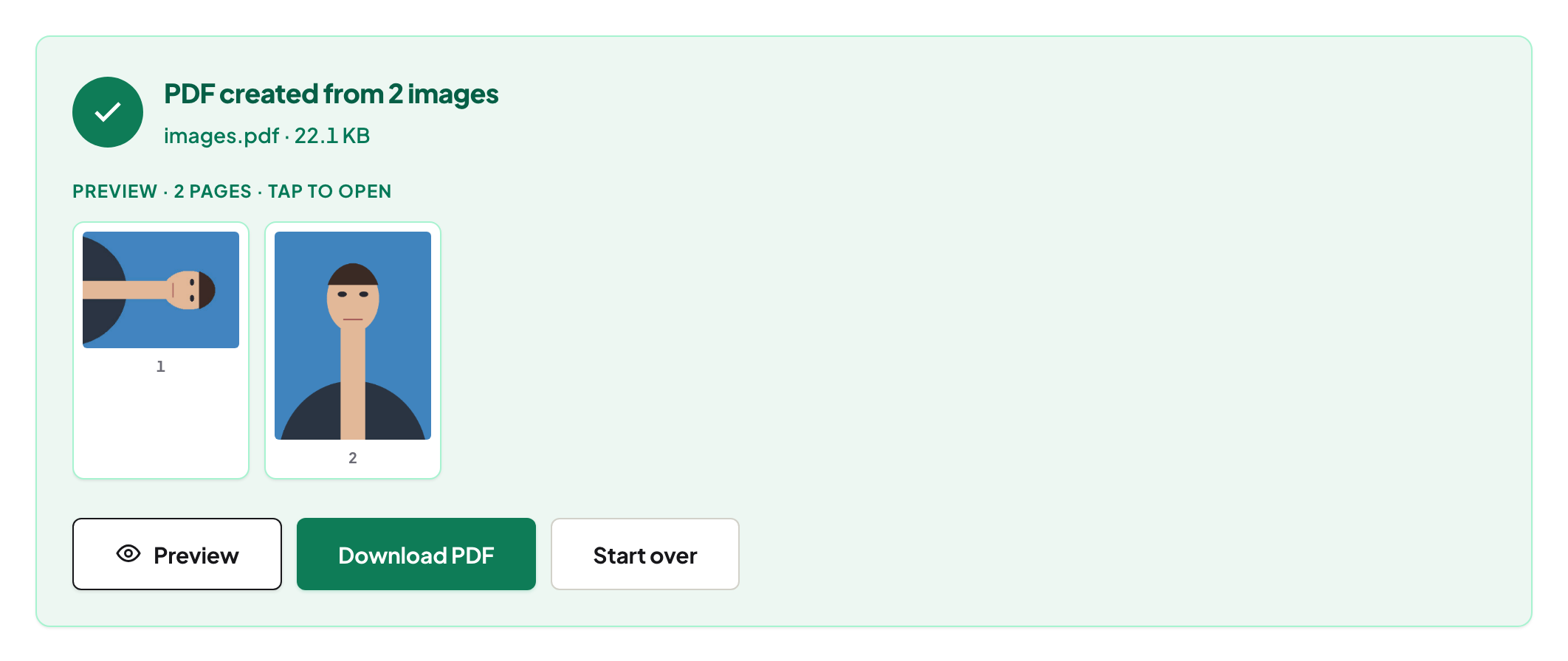
Arrange the photos on screen before converting — the output follows your order. Portrait photos sit naturally on portrait pages; the tool fits each image to its page rather than cropping it. Shoot documents straight-on and fill the frame; the closer the photo is to flat, the better every downstream step behaves.
If it must also be searchable
A photo-PDF is pictures of words, not words. For a document someone will search or copy from, run the result through OCR — or follow the photo-to-searchable walkthrough, which chains the whole thing: photos in, straightened, recognised, one searchable PDF out.
Size, before you hit send
Modern phone cameras produce multi-megabyte frames, and ten of them make a heavy PDF. If the portal or mailbox complains, compress the PDF — for photo pages the size drop is usually large, and for receipts nobody needs the original twelve megapixels.
Troubleshooting
The picker shows Files, not Photos. Choose the photo-library option in the picker; on iOS both are offered. Pages came out sideways. The photo carries a rotation flag some viewers ignore — rotate those pages in the PDF and the flag stops mattering. HEIC photos. Add them anyway; if the tool lists what it accepts, follow that list — the phone can also export JPEG copies from the share sheet.
Frequently asked questions
Do the photos leave my phone?
No — the PDF is assembled in the browser tab. For receipts and IDs that is the point.
One photo per page, or many?
One page per photo is the default and what recipients expect for documents.
The PDF is huge — why?
Phone photos are large. Compress the finished PDF; Balanced usually brings a photo bundle down dramatically.
Try it yourself
Free, private, no account. Runs entirely in your browser.