Getting text and tables out of reading-list PDFs without retyping them
Extract quotes and tables from academic paper PDFs: copy text in reading order, pull tables into a spreadsheet, and handle scanned papers with OCR first.
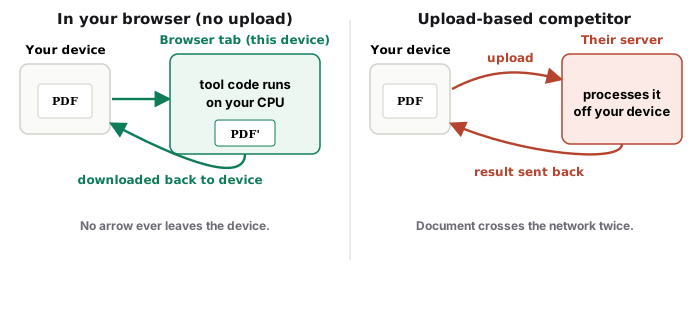
UnboundPDF is a free suite of 54 PDF and image tools that run entirely in your browser — merge, split, compress, edit text, OCR in 126 languages, redact, sign, convert and archive to PDF/A. Your document is read and written by the page on your own device; there is no document-upload endpoint in the core tools, no account, no watermark and no daily cap. Every result can be checked — with the Network tab, or with the Document Passport the Workspace writes for a chain of steps.
Quick start. For clean quotes in reading order, run the paper through Extract Text and copy from the output. For a table you need as data, PDF to Excel. For a scanned paper, OCR first, then either.
Why copying from papers goes wrong
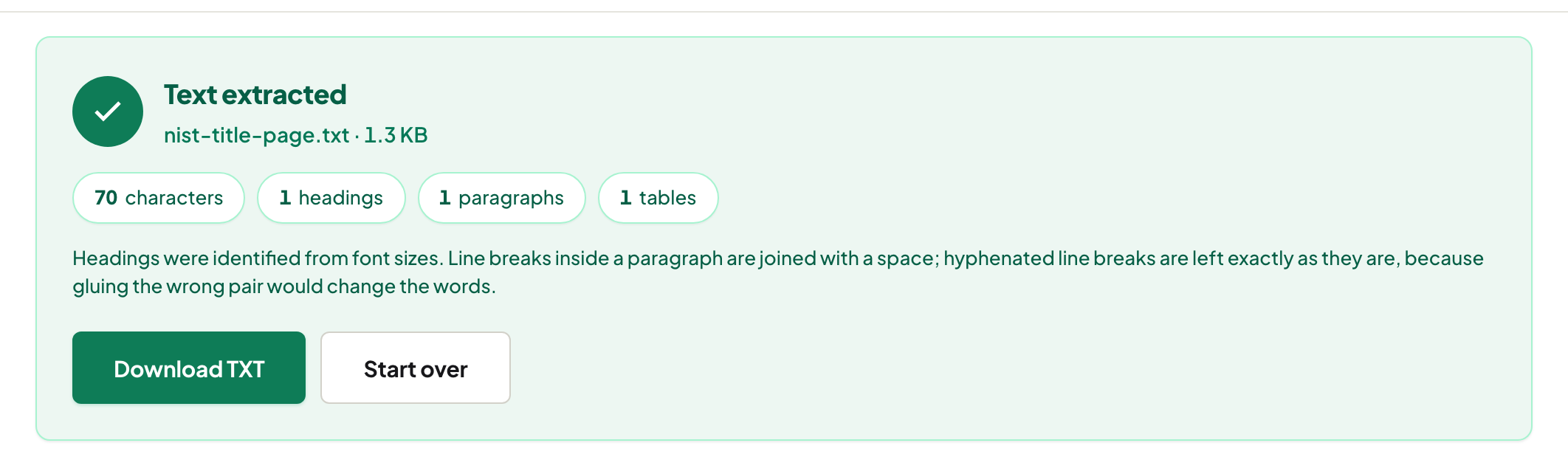
Academic PDFs are typeset in two columns with footnotes, headers and hyphenated line breaks, and a reader's select-drag walks that layout visually: you get column A's line, then column B's, then the running header. An extractor that reconstructs reading order gives you the paragraph as the author wrote it — quote-ready, with the hyphen-ation mended.
Tables: data, not pictures of data
Retyping a results table is an evening and an error waiting to happen. PDF to Excel detects the table and emits typed cells you can sort and chart. Then apply the researcher's discipline: spot-check a handful of values against the page, and any number that feeds your own analysis gets checked individually — extraction is fast, your citation is forever.
The scanned half of the reading list
Older papers and book chapters arrive as scans, where nothing selects because there is no text — only pictures of it. OCR adds the text layer (126 languages, with per-page confidence so you know which pages to double-check), and after that the same extract-and-quote flow works. For a whole scanned book, the book walkthrough chains OCR with chapter splitting.
Troubleshooting
Footnotes keep landing inside my quotes. Take the paragraph from the extracted output rather than the reader's selection — the extractor separates flows the visual drag cannot. Ligatures came out odd (fi → fi). Extraction normalises the common ones; search your quote for stray characters before it goes in the bibliography. The table has merged cells. Expect a little hand-tidying in the spreadsheet; check the totals row first.
Frequently asked questions
Copy-paste from my PDF reader garbles the text. Why?
Two-column layouts paste in visual order, not reading order. A text extractor that follows reading order fixes exactly this.
Can I get a paper's table into Excel?
Yes — PDF to Excel detects table structure and emits typed cells. Check numbers against the page before citing them.
The paper is a scan and nothing selects.
Run OCR first — it writes a text layer — then extract. One check: select a word; if you can't, it's a scan.
Try it yourself
Free, private, no account. Runs entirely in your browser.