Converting a PDF to an editable Word file: what you get back
Convert PDF to .docx in your browser — paragraphs, headings, tables, columns, images. Which documents come out clean, what to tidy, and scans.
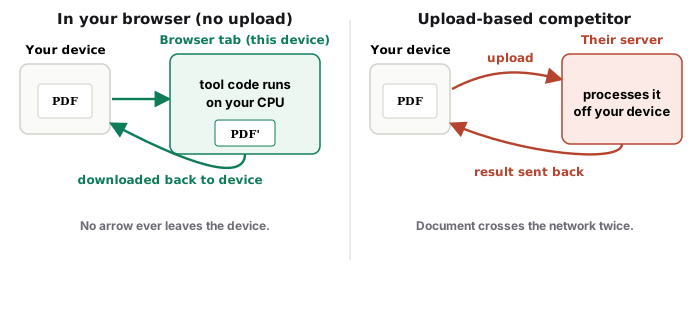
UnboundPDF is a free suite of 54 PDF and image tools that run entirely in your browser — merge, split, compress, edit text, OCR in 126 languages, redact, sign, convert and archive to PDF/A. Your document is read and written by the page on your own device; there is no document-upload endpoint in the core tools, no account, no watermark and no daily cap. Every result can be checked — with the Network tab, or with the Document Passport the Workspace writes for a chain of steps.
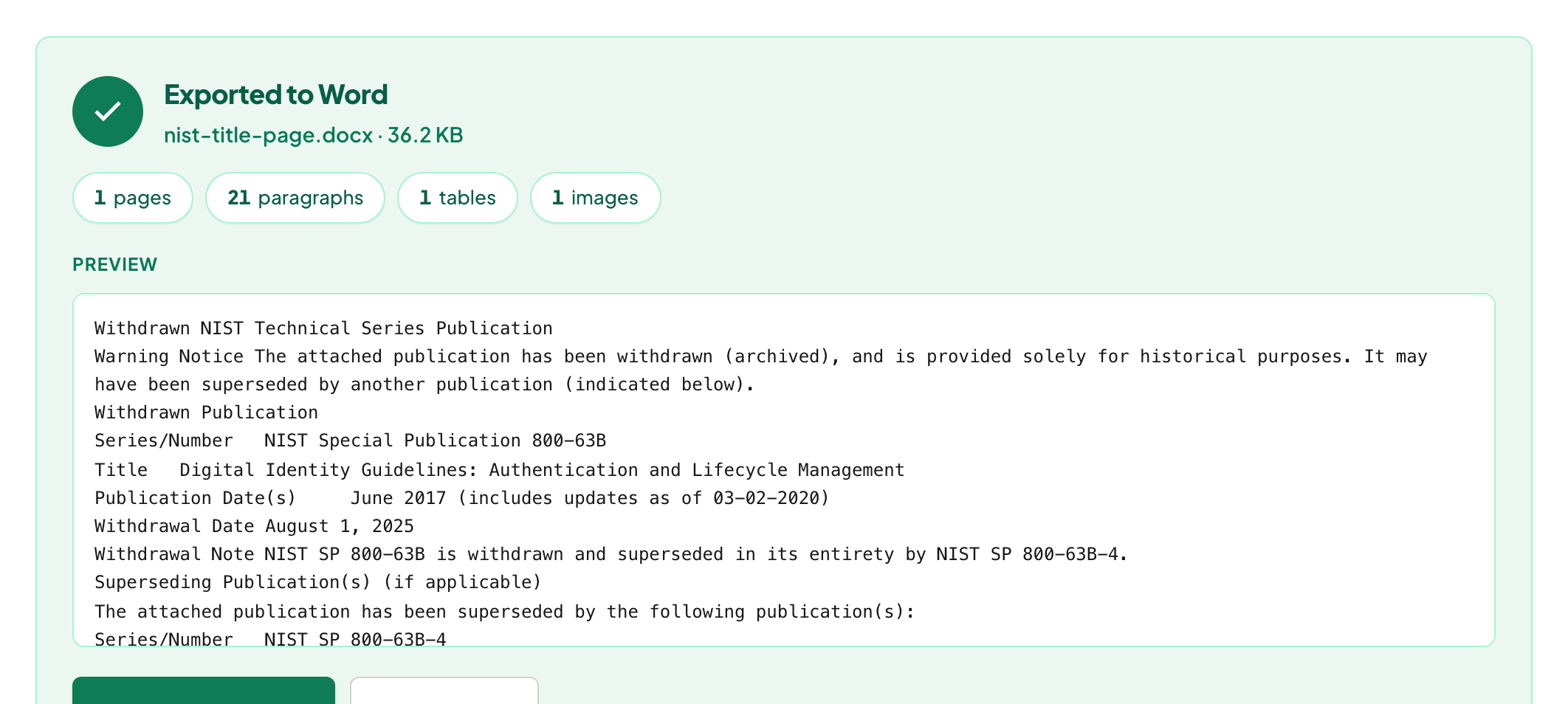
Quick start. Open PDF to Word, add the PDF, download the .docx. It opens in Word, LibreOffice and Google Docs with real paragraphs, headings, lists, tables and images.
What a .docx can hold, and what a PDF is
A PDF is a page description — glyphs at positions. A Word file is a flow — paragraphs with styles. Conversion rebuilds the flow from the positions: lines into paragraphs, paragraph sizes into headings, ruled or aligned blocks into tables, pictures placed where they were. Reports, letters, contracts and papers convert well; brochures with text wrapped around shapes are the hard case.
Tables
The same table engine that powers PDF to Excel detects ruled and whitespace tables and writes them as Word tables — cells you can edit, not tab-separated text. Merged headings and wrapped cells deserve a glance, as in any conversion.
Columns
Two-column pages come across as columns, in reading order. If a layout mixes a full-width figure with two columns, check the paragraph order around the figure.
Fonts
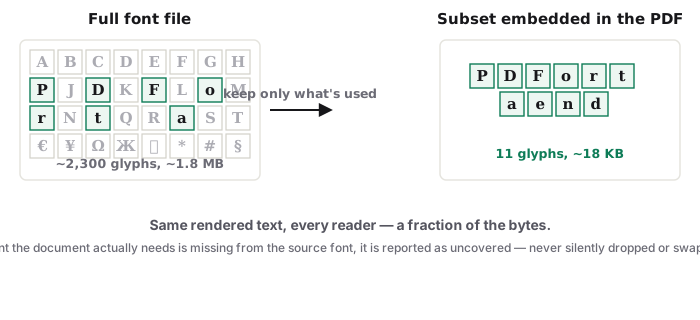
Word uses the fonts on your machine. The conversion names the document's font; where it is not installed, Word substitutes and says so in its font menu. The text is right; the look may differ slightly until you choose a font.
Scans
A scan has no text until recognised. Run OCR PDF first; the Word file then carries the recognised text with the page image where the OCR could not place words.
Word's own "Open PDF"
Word can open a PDF and convert it. It needs Word installed and does a similar reflow; it is fine for simple documents. This page runs in any browser, uploads nothing, handles tables through a dedicated detector, and tells you what it found before you open the file.
Mac, Windows, iPhone, Android
Same page. On a phone, the .docx opens in Word, Pages or Google Docs from your downloads.
Troubleshooting
Paragraphs broken at every line. The PDF used hard line breaks; select the text and use Word's "join lines" or re-flow by removing paragraph marks. Table came through as text. The table had neither lines nor clean alignment; try PDF to Excel, which is stricter. Empty document. It is a scan — OCR first.
Frequently asked questions
Will the Word file look identical to the PDF?
It will read identically and be editable; small differences in spacing and fonts are normal because Word re-flows text with its own engine and fonts.
Does it keep images?
Yes, placed where they were on the page.
Is the file uploaded?
No. The PDF is read and the .docx is written in your browser tab.
Try it yourself
Free, private, no account. Runs entirely in your browser.