.docx first-class, .doc supported: the formats question answered plainly
Which Word formats convert to PDF: .docx and .doc as the tool's page states — plus honest routes for .rtf, .odt, Pages and the rest of the format zoo.
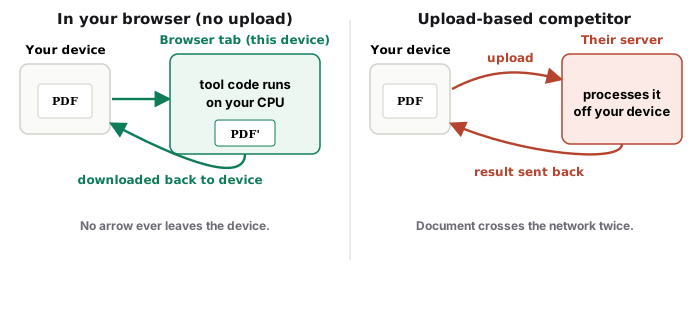
UnboundPDF is a free suite of 54 PDF and image tools that run entirely in your browser — merge, split, compress, edit text, OCR in 126 languages, redact, sign, convert and archive to PDF/A. Your document is read and written by the page on your own device; there is no document-upload endpoint in the core tools, no account, no watermark and no daily cap. Every result can be checked — with the Network tab, or with the Document Passport the Workspace writes for a chain of steps.
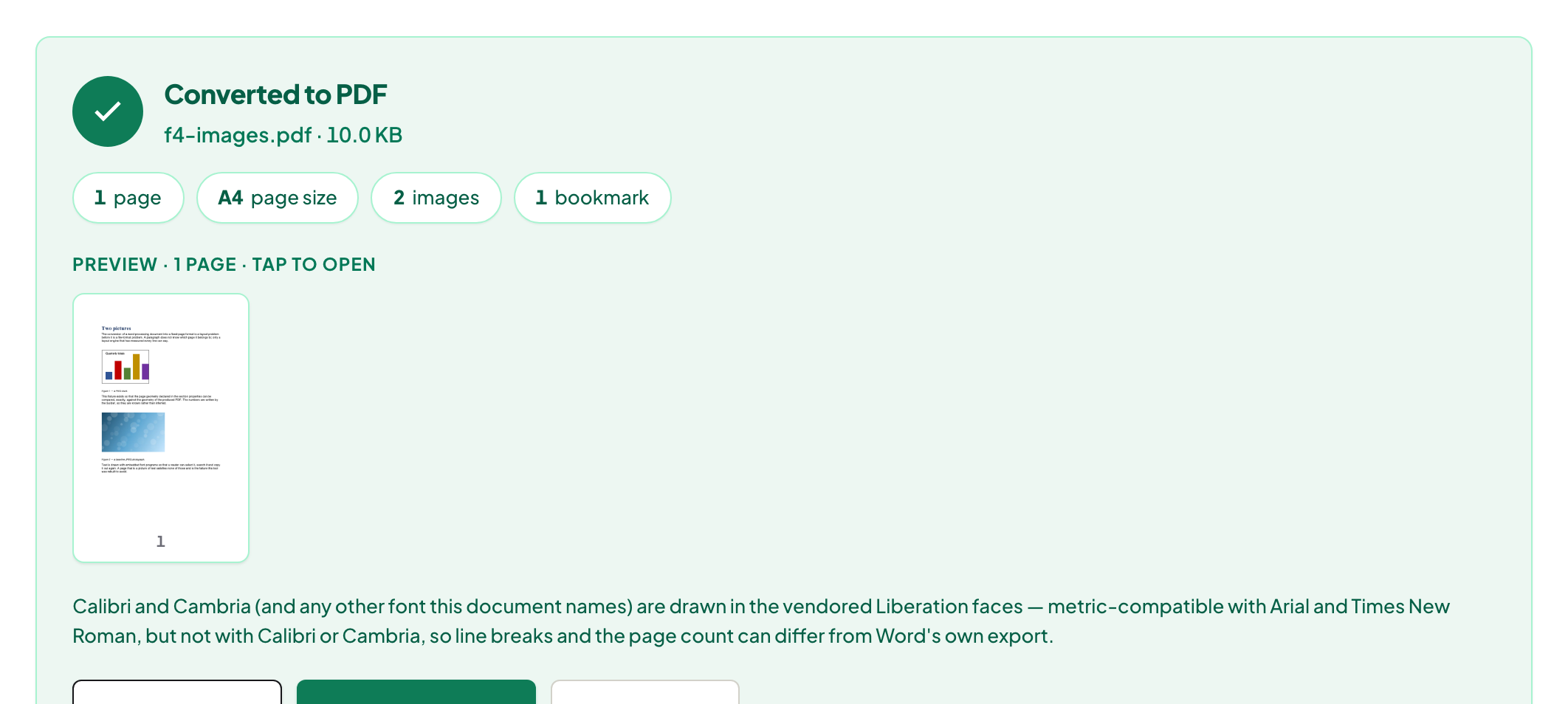
The plain answer. Word to PDF is built for Word's own formats — .docx first-class, .doc supported, as the tool's page states. Everything else in the format zoo has a short honest route here, listed below.
.docx: the main road
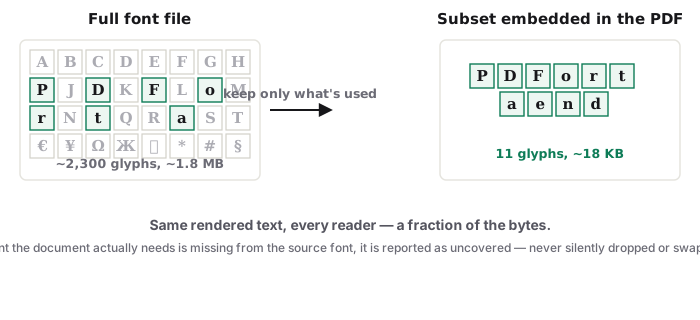
The modern default converts with fonts embedded where the document provides them and layout preserved — with the one caveat worth its own reading if your text isn't Latin-script: fonts and non-Latin text. Check the output once; it renders instantly.
.doc: the archive road
The 1997–2007 format still walks in from old archives and older colleagues, and it converts. Very old .doc files with exotic embedded objects deserve one extra glance at the output — their internal structures predate half the modern format's guarantees.
The rest of the zoo, routed honestly
Rather than pretend to read everything, the honest map: .rtf/.odt — open in Word or LibreOffice, save as .docx (or export PDF right there). Pages — File → Export in Pages gives .docx or PDF directly. Google Docs — File → Download offers both. In every case you end on the main road with a .docx, or skip the trip entirely with a native PDF export — both correct answers. Once converted, the PDF joins any chain: merged, compressed, signed.
Troubleshooting
The converter refuses my file. Check its extension against the accepted list on the tool page — the routes above cover the refusals. Old .doc came out odd. Open it in a current editor, resave as .docx, reconvert — modernising the container fixes most ghosts. Macros in my .docm. Macros are behaviour, not appearance — save as .docx (the document part) and convert that.
Frequently asked questions
What about .rtf and .odt?
Honest answer: the converter's home is Word formats. Open .rtf/.odt in any editor that reads them (Word, LibreOffice) and export .docx or PDF from there.
Apple Pages files?
Pages exports both .docx and PDF natively — export from Pages, then convert or use the PDF directly.
Google Docs?
Docs downloads as .docx or straight to PDF from its own File menu; either route works.
Try it yourself
Free, private, no account. Runs entirely in your browser.