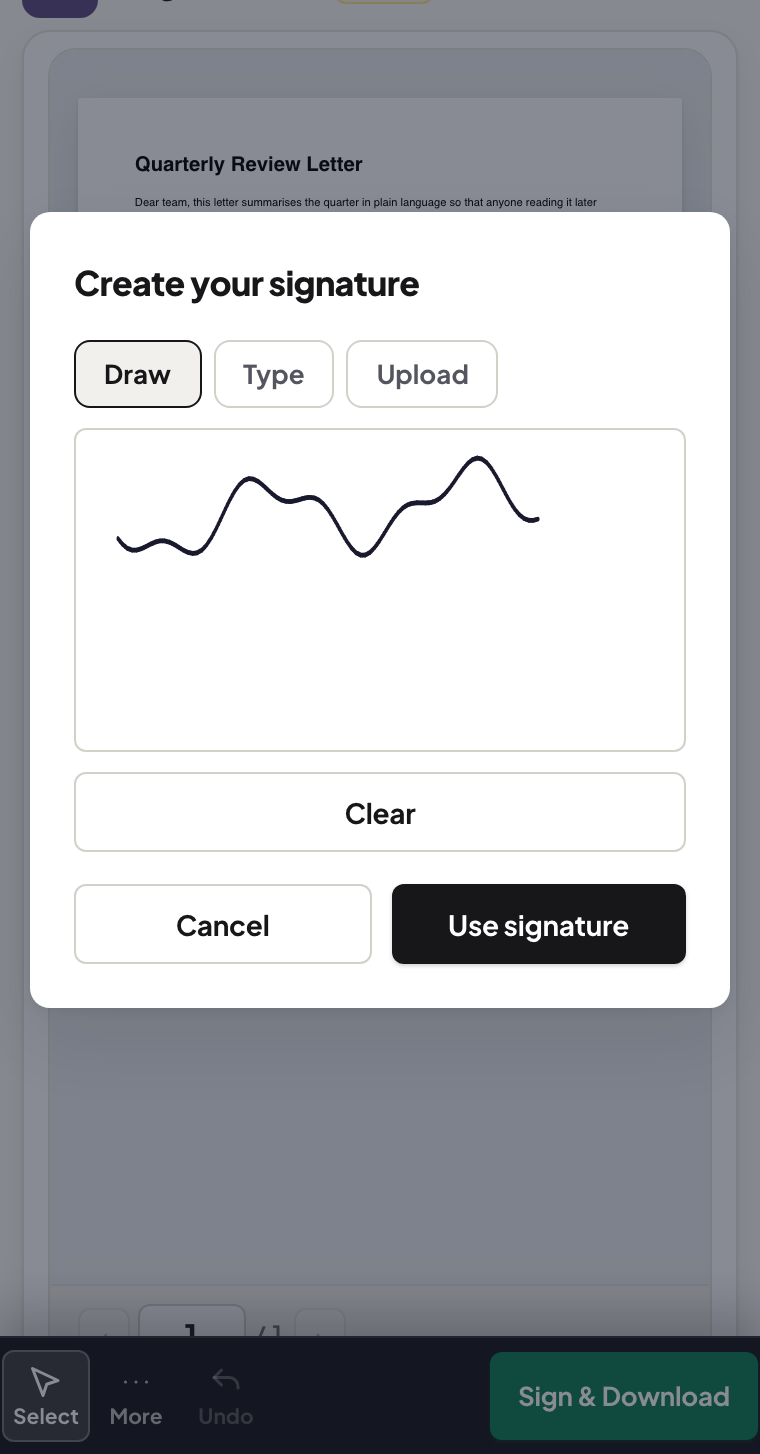
Apple's Markup can sign, so can the browser — an honest comparison from the signature line
Signing a PDF on iPhone with Apple's built-in Markup versus a browser tool: what Markup does well, where flattening and signatures differ, how to pick.
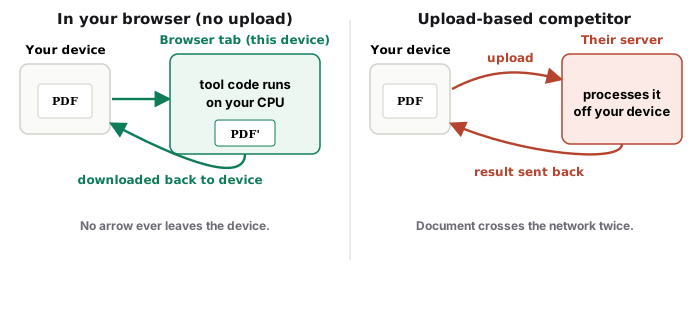
UnboundPDF is a free suite of 54 PDF and image tools that run entirely in your browser — merge, split, compress, edit text, OCR in 126 languages, redact, sign, convert and archive to PDF/A. Your document is read and written by the page on your own device; there is no document-upload endpoint in the core tools, no account, no watermark and no daily cap. Every result can be checked — with the Network tab, or with the Document Passport the Workspace writes for a chain of steps.
Quick start. Fast and simple: Markup from the share sheet does the job. Repeatable and controlled: Sign PDF in Safari — drawn, typed or your photographed ink signature, then flattened before it goes back. The comparison, honestly.
Markup, credited properly
Tap the attachment, share sheet, Markup, sign with a finger, reply — Apple made casual signing genuinely easy, it stores your signature for reuse, and for the school form it is exactly right. Its limits only appear at the edges: signature styles (drawn is the offering), form-filling on scans, and behaviour that varies with where the PDF lives (Mail vs Files vs third-party apps).
Where the browser tool earns its tab
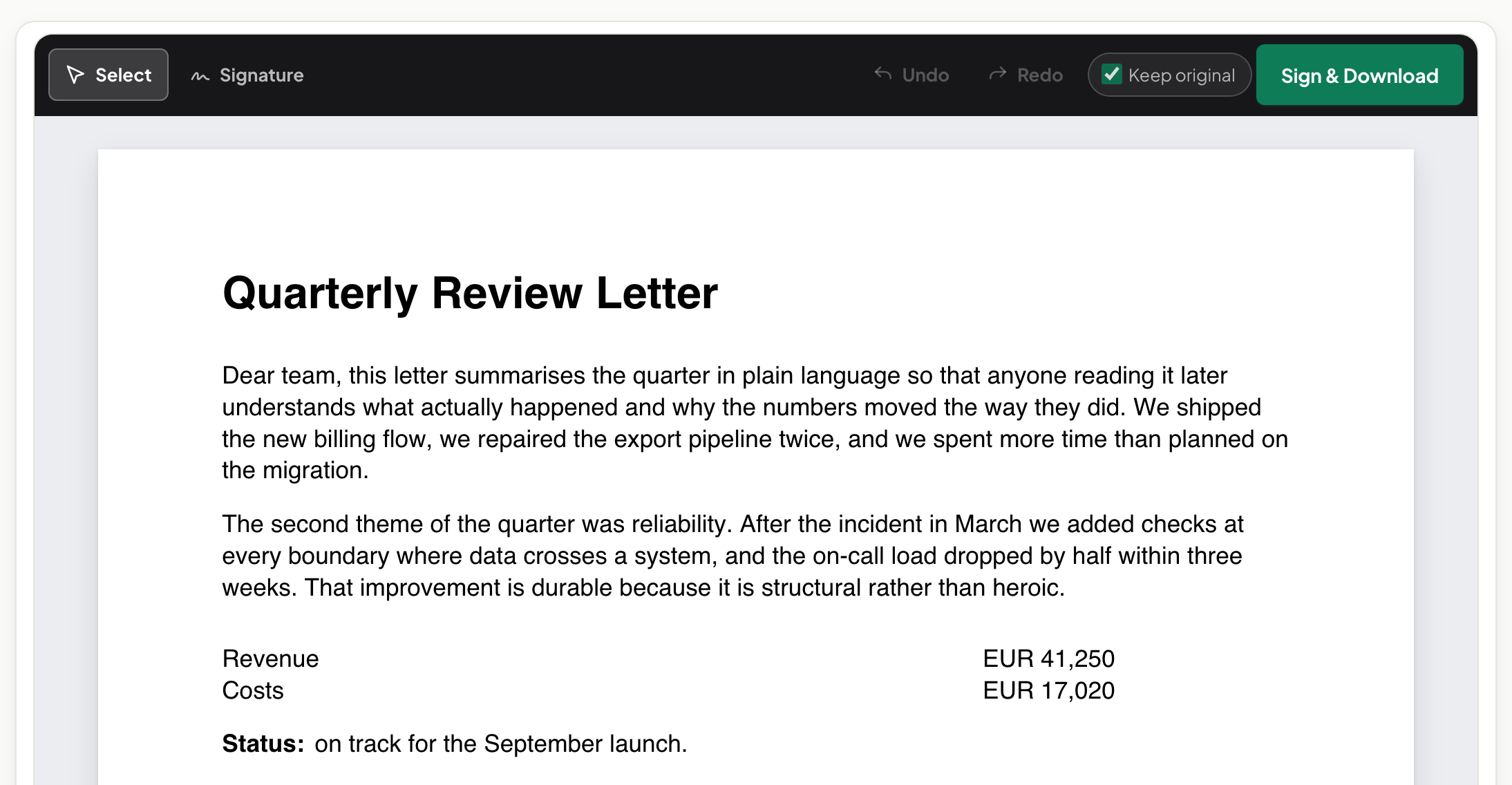
Three signature sources — drawn, typed, or the photographed ink signature that looks best of all — plus text and initials placement for real form-filling, and an explicit flatten step so what you send back is baked into the page for every reader. And it is the same tool on Android, the locked-down work laptop, and the Mac — one habit for every machine in your life, not an iPhone-only trick.
Pick by the document, not loyalty
One-line consent form arriving in Mail: Markup, done in a minute. Lease, contract, anything with fields, initials-every-page, or an audience whose reader you don't control: the browser flow, flattened. When a signature has gone wrong either way, the troubleshooting guide sorts it.
Troubleshooting
Markup's signature looks fine to me but "arrived blank". Some readers mishandle annotation-only signatures — resend flattened from the browser tool. I want my real ink signature. Photograph it once on white paper, upload, reuse forever. The form has twenty fields. That stopped being a Markup job — fill and sign properly, then flatten.
Frequently asked questions
Is Markup good enough for a quick signature?
Often yes — it is built in, free and fast, and Apple deserves the credit. For sign-and-send-back of a simple page it is a fine tool.
Then why the browser tool?
Typed and uploaded-image signatures alongside drawn, deliberate flattening before sending, and the same flow on the Android phone, the work PC and the Mac.
Which one keeps my document off servers?
Both keep the signing local to the device. The difference is workflow, not privacy.
Try it yourself
Free, private, no account. Runs entirely in your browser.